Google Forms for teachers
Last updated September 2026 · ~9 minute read
Google Forms behaves differently on a school account than it does on a personal one, and the difference is switched on before you touch anything. A Workspace form collects the signed-in pupil's verified email address by default. There is no per-pupil timer. Images in questions cannot be given a text alternative. This page states each of those once, with Google's own wording, and sends you to the guide that covers the task.
Form+ is a native client for the forms in your own Google account. A kiosk QR stand, answer keys, certificates and exports — no migration, no copies. Get Form+ free on the App Store.
Everything below is about the handful of behaviours that change when your respondents are pupils rather than customers. The step-by-step material lives in the linked guides; this page exists so you know which ones you need.
The setting your school account already turned on
Google's Forms API documents the email collection setting on a form, and the defaults are not the same for
everyone. For VERIFIED, the reference reads:
“The form collects email addresses automatically based on the account of the signed-in user. Default value if the form owner uses a Google Workspace account.”
And for DO_NOT_COLLECT: “The form doesn't collect email addresses. Default value if
the form owner uses a Google account.”
A school or district Google account is a Workspace account. So unless someone has changed it, a form you create at work is very likely recording each pupil's verified school address alongside their answers, whether or not you ever asked it to. The same default does not apply to a form you make at home on a personal account, which is exactly why advice written by non-teachers does not match what you see.
This cuts both ways and both ways matter. It is genuinely useful: you know who submitted, you can chase the four who did not, and nobody can submit as somebody else. It is also identifiable data about children, attached to every response, sitting in a spreadsheet that gets shared, duplicated and exported. Those are the mechanics; where that spreadsheet may go and who may see it is a question for whoever administers your school's Workspace, not for a web page.
The practical instruction is small: open Settings → Responses → Collect email addresses on each form and set it on purpose rather than inheriting it. If you want the opposite — a genuinely unattributed exit ticket or wellbeing check — read how to make a Google Form anonymous first, because several other settings quietly undo it.
What Google Forms will not do for a classroom
Three gaps account for most of the time teachers lose to Forms. None of them has a hidden setting.
There is no timer. Nothing in Google Forms gives a pupil their own countdown that starts when they open the paper. A close date exists, but it fires once, for everybody, at the same instant — so the pupil who started ten minutes late simply gets ten minutes less. It is a bell, not a stopwatch. The options that actually exist, and their honest limits, are in how to add a timer to Google Forms.
There is no capacity per option. A response limit counts submissions to the form; it has no idea which answer anyone picked. “Trip A: 20 places, Trip B: 20 places” cannot be enforced inside one form, and a cap of 40 lets all 40 pupils choose Trip A. We went looking for it properly in Google Forms for event registration.
There is no alt text. Google says so itself, in its Accessibility Conformance Report, under WCAG 1.1.1 Non-text Content: “Form authors can not define alt text for uploaded images.” A labelled diagram, a graph, a photograph of an experiment — if it carries the information the question is about, a pupil using a screen reader cannot reach it.
Quizzes and marking
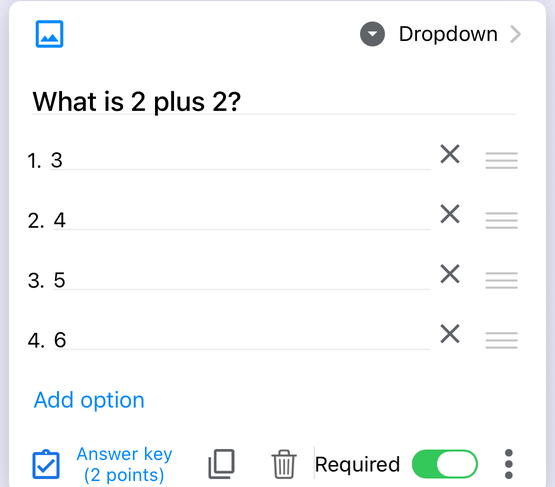
Quiz mode is the one classroom feature Google built deliberately, and it is a single switch: Settings → Make this a quiz. What decides whether it saves you an evening is the question type, because answer keys are documented for six of them only — Short answer, Multiple choice, Checkboxes, Dropdown, Multiple choice grid and Checkbox grid. A paragraph answer has no answer key, so every one of those is a paper you will read yourself. Write the recall questions as multiple choice and reserve paragraphs for the work that deserves your attention. Full walkthrough: how to make a quiz on Google Forms.
Attendance and registers
A register is a form you re-use daily, which is a different problem from a form you send once: you need the date, you need one row per pupil per day, and you need to stop yesterday's link being submitted again today. Verified email collection does a lot of the work here, since the name comes off the account rather than a typed field nobody spells consistently. The mechanics, including the pre-filled-link trick and where it breaks, are in using Google Forms for attendance.
Stopping nonsense answers before they reach the sheet
Pupils typing “form 7b”, “7B”, “7 b” and “seven bee” into one free-text box will cost you longer to clean than the lesson took. Response validation — number ranges, text rules, length limits and regular expressions — is the cheapest fix available, and it runs before the answer is ever stored. Where it works, and the question types it silently does not cover, are in Google Forms data validation.
Accessibility, beyond the alt text gap
The alt text limitation above is the one that catches teachers, because images in questions are so normal. It is not the only thing documented: keyboard navigation, screen reader behaviour, and the parts of Google's conformance report rated Partially Supports are all worth knowing before you set a paper that a pupil with a reading or vision need has to sit under the same conditions as everyone else. The author-side habits that actually close the gap — putting meaning in words, never relying on colour or position alone — are in Google Forms accessibility.
Sharing with colleagues, and collecting work
A department paper is usually built by one person and owned by nobody, which is how forms get lost when that person changes school. Adding collaborators, and the difference between sending the form and sending the responses, is covered in how to share a Google Form with collaborators.
If you are collecting work rather than answers, know two things before you add a file upload question. Respondents must sign in to a Google Account to answer it — Google's wording is “To answer this question, responders need to sign in to a Google Account” — so the form cannot be anonymous and cannot be filled by a pupil without a school account. And the files land in your Drive, against your storage quota. Thirty essays is fine. Thirty videos, every term, is your account.
The same sign-in rule appears in the setting teachers reach for most often. Turning on Limit to 1 response means, in Google's own words, that “To access and fill out the form, users must sign in to their Google Account.” For a pupil without a school Google account — a new arrival, a device shared at home, a family that has opted out — that is not an inconvenience, it is an exclusion. Decide it knowingly.
On a phone or an iPad
Google publishes iPhone apps for Docs, Sheets, Slides, Drive and Gmail, but not for Forms — on a phone, Google's own answer is the website. That is workable for a quick edit and wearing as a daily habit, which is the gap Form+ fills: a native iPhone and iPad client that signs in to your own Google account and edits the real forms already in your Drive, with no migration and no copies.
A few of its features were built for this setting specifically. Kiosk mode turns an iPad into a full-screen scan to respond stand: a large QR code for your form and a live count of responses so far, which pupils scan and then fill in their own browser. Quiz timer & proctoring adds a countdown and a supervised session — and here are the two boundaries that matter, stated plainly. The first is scope: that timer runs inside the app's own branded fill screen on the device in front of you, so a pupil who opens your Google Forms link in Chrome on their own laptop never reaches it. The second is sharper. That fill screen is opened from a single Preview branded form… row in the editor's Share & Brand menu, and the current build switches that row off; the filter that hides it matches the row's translated title against an English list, so the row is still drawn on a device set to one of the app's 21 other languages, and on an English-language device it is not drawn at all. The settings screen still opens and still saves to that device — what it configures is a fill screen you cannot currently open. Plan the supervised-station idea around that, not around the feature name. If your school issues managed Chromebooks, Google’s locked mode covers that case natively. There is also an event check-in scanner, certificates, mail merge and document generation for report slips, a duplicates and spam pass over responses, and CSV and Excel export when the sheet needs to leave Google.
Your real Google Forms, on the iPad you already carry
Form+ is a native client for the forms in your own Google account. A kiosk QR stand, answer keys, certificates and exports — no migration, no copies.
Get Form+ free on the App StoreFrequently asked questions
Does a school Google Form collect student email addresses by default?
Very probably, yes. Google's Forms API documents VERIFIED as the “Default value if the form
owner uses a Google Workspace account”, while DO_NOT_COLLECT is the “Default value if the form
owner uses a Google account”. A school or district account is a Workspace account, so your form is likely
collecting the signed-in pupil's address automatically. Open Settings → Responses → Collect email addresses
and set it deliberately.
Can I put a timer on a Google Forms quiz?
Not per pupil. There is no built-in countdown that starts when a respondent opens the form. A close date fires once for everybody, so a pupil who starts late gets less time. Anything resembling a per-respondent timer comes from an add-on, Apps Script, or a supervised device you control.
Which Google Forms question types can be graded automatically?
Google documents answer keys for Short answer, Multiple choice, Checkboxes, Dropdown, Multiple choice grid and Checkbox grid. Paragraph answers and file uploads have no answer key, so anything you want marked without reading it has to be one of those six.
Do pupils need a Google account to fill in my form?
It depends on your settings. Limit to 1 response makes sign-in compulsory — “To access and fill out the form, users must sign in to their Google Account” — and a File upload question does the same. For a pupil without a school Google account, those settings are a locked door, not an inconvenience.
Can I add alt text to an image in a Google Form?
No. Google's Accessibility Conformance Report states, under WCAG 1.1.1 Non-text Content, that “Form authors can not define alt text for uploaded images.” If a diagram or photograph carries information a pupil needs, repeat that information in the question text or description.