How to share a Google Form with collaborators
Last updated September 2026 · ~9 minute read
Short answer: open the form, click Share, enter the people or groups, click the down arrow and choose Editor, then click Send. That is a completely different thing from sending someone the form to fill in — same button, different role, and getting it wrong hands a stranger your question list.
Form+ adds editors and responders, sets link access, and removes people — on your real Google Forms and your own Google account. Manage access is free. Get Form+ free on the App Store.
Google Forms has two “share” concepts living inside one dialog, and almost every question about collaborators is really a question about which of the two you just used.
Two different links, and only one of them is safe to post
Every Google Form has two URLs, and they look similarly forgettable:
- The responder link — the fillable form. This is the one you post, email, print
on a poster or shorten to a
forms.gleaddress. Anyone who opens it can answer, and nothing more. - The edit link — the form editor. Anyone who can open this with Editor access can rewrite your questions, change where responses go, and read what has already been submitted.
The failure mode is always the same direction: someone copies the URL out of their browser bar while building the form and pastes that into the announcement. That is the edit link. If the form's access allows it, every recipient lands in your editor instead of your form.
So before anything else, settle which job you are doing. If you want people to answer the form, none of this page applies — see how to share a Google Form with responders instead. This page is only about giving someone access to build the form with you.
How to add an editor to a Google Form
Google's help page “Share your form with collaborators” gives this path:
- Open the form in Google Forms and click Share.
- Optionally set General access — Google says you can give access to “anyone with a link or target audiences” here. Leave it alone unless you know you want it; see the warning below.
- Enter the names of the people or groups you want to work with.
- Click the down arrow and select Editor.
- Optionally add or remove an expiration date on that person's access.
- Click Send.
Google's Workspace Learning Center documents an older route to the same place — “In the top right, click More… Click Add collaborators”, then an Add editors window. If your Forms shows that instead, you are on the older dialog; the outcome is identical. Both labels are Google's own, which is worth knowing when you are following a tutorial written against the other one.
Invited people do get an email. Google notes that if the form is published, an email notification is sent, and that it can be customised or disabled in the dialog. That is the invitation email and has nothing to do with being told when responses arrive — response notifications are a separate, owner-scoped setting covered in Google Forms notifications not working.
About link-based edit access
Google's collaborator page mentions General access and lists “anyone with a link” as one of its options, but it does not walk you through pointing that link at the Editor role, and it does not warn you about the consequences. Drive's own sharing documentation supplies the general machinery: Restricted (“Only people with access can open the file”), Anyone with the link (“Anyone who has the link can use your file, without signing in to their Google Account”), and Public.
Read that second one carefully. A link set to edit is an unauthenticated link. It cannot be revoked from one person, it survives being forwarded, and Google does not ask who is on the other end. For collaborators, add people by name. Named access is what expiration dates and individual removal attach to.
What an editor can do — and what Google does not document
This is where most guides start inventing a permission matrix. Google's own pages are thinner than you would expect, so here is the honest split.
What Google states plainly:
- “Whoever you invite can edit any part of your form, including responses and where they are saved.” So yes — an editor sees your responses, and can change the destination they are written to.
- “When you create a new response spreadsheet, form collaborators automatically get access to it.” Access to the form propagates into the linked sheet at the moment the sheet is created.
- Drive documents that an Editor “can't change the owner”. Ownership transfer is a separate, owner-only action.
What Google leaves undocumented: its collaborator page does not say whether an editor may publish or unpublish the form, nor whether an editor may delete it, nor which form settings are open to them. Google documents publishing itself clearly enough — “When you publish a form, responders can access it. If the form is unpublished, responders with the link can't access it” — but never ties that control to a role. We are not going to guess. If it matters to you that a particular editor cannot unpublish or bin the form, do not rely on an inference from a help page; the only thing Google guarantees them is that they cannot take ownership from you.
Is there a view-only role for a form?
Short version: not for the form editor, and this trips people up constantly.
Drive's role table lists three roles — Viewer (can view and, by default, download; cannot comment, edit or share), Commenter, and Editor — and Google's Drive documentation does not carve out an exception for Forms. But Google's Forms pages only ever document two labels in a form's Share dialog: Editor, and Responder. Responder is the role for people who fill the form in, not a read-only view of your questions.
So if what you want is “let my manager read the form without touching it”, Google does not document a way to do that. Your documented options are to make them an Editor and trust them, or send them the responder link so they see the form as a respondent would. Anything else you read about a Viewer role on a Form is somebody extrapolating from Drive's generic table.
One thing Google is explicit about on the responder side: “Response summaries show full text responses or charts for each question and are visible to anyone who can respond to the form.” If you have that summary enabled, responder access is not as narrow as it sounds.
Removing access, and what that does not undo
Removing an editor from the form's Share dialog removes them from the form. It does not unwind everything that access produced.
- The linked spreadsheet keeps them. Google is explicit: “Further changes to the permissions of the form won't synchronize automatically.” The sheet got its own copy of the permissions the day it was created. Open the spreadsheet and remove them there too, or they still have every response.
- Anything they downloaded is gone from your control. A CSV export taken last month is not affected by a permission change today.
- Edits they made stay made. Removal is not a revert. If they changed questions or the response destination, those changes are yours to undo.
- A link set to edit is not a person. If General access was ever set to a link-based Editor role, removing named people changes nothing — turn the link access off.
And if what you actually wanted was for someone else to own the form outright rather than co-edit it, that is ownership transfer, not sharing — it has its own rules and its own pitfalls, covered in how to duplicate a Google Form.
Editor vs responder, side by side
| Editor (collaborator) | Responder | |
|---|---|---|
| Which link they use | The edit link | The responder link |
| Safe to post publicly | No | Yes — that is its job |
| Change your questions | Yes — “any part of your form” | No |
| See responses | Yes, per Google | Only the summary, and only if you enabled it |
| Change where responses are saved | Yes, per Google | No |
| Access to the linked sheet | Automatic when the sheet is created | No |
| Publish / unpublish / delete | Google does not document it | No |
| Take ownership | No — Drive: an editor “can't change the owner” | No |
| How you add them | By name or group, with an optional expiry | By handing out the link |
Adding an editor from your phone
Everything above assumes the desktop web editor. Form+ puts the form file's Drive permissions behind a Manage access screen on iPhone and iPad, under Responders & editors:
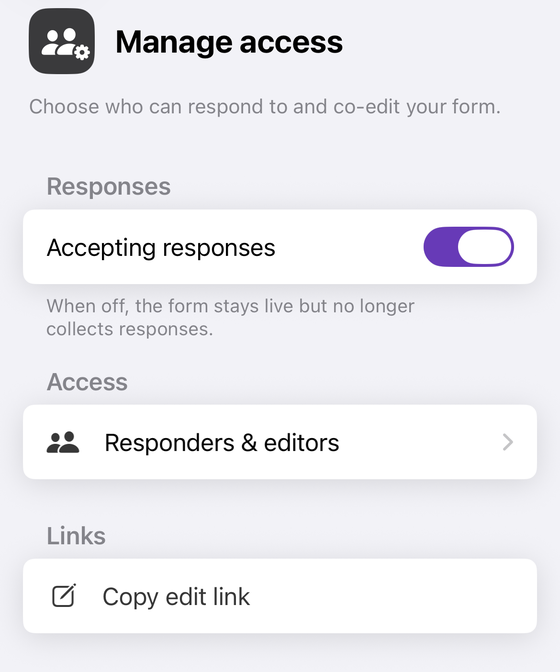
- Add someone by email as Add as editor or Add as responder.
- Change an existing person with Make editor, Make responder or Remove access.
- Under Drive file sharing, switch File access (editors) and File access (link viewers) between Restricted and Anyone with the link — with a confirmation that says, in as many words, that anyone with the link will be able to edit your form. The footnote under those two rows is the part to read: “Who can open this form's file in Google Drive. This does not control who can answer the form.”
- The app writes Drive's roles unqualified —
writerfor Editor,readerfor Responder — where Google's own sample for adding a responder sends"view": "published"alongside"role": "reader", so the two grants are not the same object. Editor vs responder covers the difference in full. - The screen shows the owner, labelled Owner, but there is no transfer-ownership action in the app. Ownership transfer stays a browser job.
- Only the form's owner can change sharing; if you are not the owner, the screen loads read-only.
Manage access is deliberately free in Form+, not a Pro feature — turning your own form's responses off should not sit behind a paywall.
Manage who can edit your form, from your phone
Form+ adds editors and responders, sets link access, and removes people — on your real Google Forms and your own Google account. Manage access is free.
Get Form+ free on the App StoreFrequently asked questions
What is the difference between a collaborator and a responder?
A responder can only fill the form in. A collaborator is an Editor: Google's Workspace Learning Center says whoever you invite can edit any part of your form, including responses and where they are saved. They are two different roles in the same Share dialog, reached by the same button, so the role label is the only thing separating them.
Can I give someone view-only access to a Google Form?
Not in the way people usually mean it. Google's Forms help pages document exactly two roles in the form's Share dialog, Editor and Responder. Drive's generic role table lists Viewer, Commenter and Editor, but Google does not document a Viewer or Commenter role for the form editor itself, so there is no documented way to let someone read your questions without either editing them or filling the form in.
Can an editor see my Google Forms responses?
Yes. Google's Workspace Learning Center states that an invited collaborator can edit any part of the form, including responses and where they are saved. Google also documents that when you create a new response spreadsheet, form collaborators automatically get access to it.
Can an editor delete my Google Form?
Google does not document this either way on its Forms sharing pages, so we will not assert an answer. What Google does document is that an editor cannot change the owner, and that ownership transfer is a separate action the owner performs from the Share dialog.
How do I remove a collaborator from a Google Form?
Remove them from the form's Share dialog. Removing editor access from the form does not remove them from the linked response spreadsheet: Google documents that further changes to the permissions of the form will not synchronize automatically, so you have to update the sheet separately.