How to see Google Forms responses on your phone
Last updated September 2026 · ~7 minute read
Short answer: there is no Google Forms app for iPhone — Google ships Drive, Docs, Sheets, Slides and Gmail, but not Forms. So Google's own routes to your responses on a phone are two: open the form's Responses tab in a mobile browser, or use Link to Sheets once and read the linked spreadsheet in the Google Sheets app. A third-party client such as Form+ is the only way to get a real Summary / Question / Individual Responses tab built for a phone screen.
Form+ signs in to your own Google account and opens your real Google Forms, with Summary, Question and Individual views, submission charts and word frequency on the phone you already carry. Get Form+ free on the App Store.
Before picking a route, it helps to know exactly what you are trying to reach. Google Forms keeps every answer in one place, and everything below is a different way of getting at it.
What Google actually gives you
In Google Forms, responses live in the Responses tab of the form editor. Google's help page documents these views inside it:
- Summary — responses aggregated by question, with the charts. Google's instruction is “At the top, click Responses and then Summary”, and it notes that the Summary tab only appears once there is at least one response.
- Question — one question at a time, with every answer to it. Google refers to this as the “question … view for responses”.
- Individual — one submission at a time, as the person filled it in. Google's instruction is “At the top of the form, click Responses and then Individual”, moving between them with Previous and Next.
For getting the data out, Google documents exactly two options, both in the Responses tab: Link to Sheets (“at the top right”) and Download responses (.csv) (under More). There is no third export and no PDF export.
Every one of those instructions is written as a desktop click path. Google publishes no phone-specific version of them, which is the whole reason this question gets asked.
Route 1 — The Google Forms mobile website
Since Google ships no Forms app for iPhone, the only way to reach the genuine Responses tab on a phone is to open the form's edit page in a mobile browser and sign in to the Google account that owns the form.
What you get is the desktop editor rendered on a small screen. The Summary, Question and Individual views are all there, because it is literally the same page. What you also get is desktop-sized charts, horizontal scrolling, and tap targets designed for a mouse. It works; it is not pleasant.
It is still the right answer in one case: you need to check something once, you are away from a computer, and you do not want to install anything.
Route 2 — The linked spreadsheet in the Google Sheets app
This is the route most people should set up, because it ends with a real native app.
Google documents a Google Sheets app for iPhone and iPad that creates, views and edits Google spreadsheets. So if the form's responses are flowing into a spreadsheet, your phone can read them properly — no browser involved.
- Once, from a computer: open the form's Responses tab and use Link to Sheets at the top right.
- Choose Create a new spreadsheet or Select existing spreadsheet when Google asks you to Select destination for responses.
- On your phone, open the Google Sheets app and tap that spreadsheet. New submissions keep arriving in it.
The catch is what a spreadsheet is. You get the response table — one row per submission, one column per question. You do not get the Summary charts, the per-question breakdown, or the Individual view. And if anyone ever unlinks the spreadsheet, Google is explicit that “new responses won't be sent to the spreadsheet, but your current data remains intact” — the old rows stay, the new ones stop.
Route 3 — A native Responses tab
The gap Google leaves is a phone-shaped version of the Responses tab itself. That is what a third-party client built on the Google Forms API is for. Form+ signs in to your own Google account, works on your real forms, and puts the same three views behind a tab bar at the top of the screen:
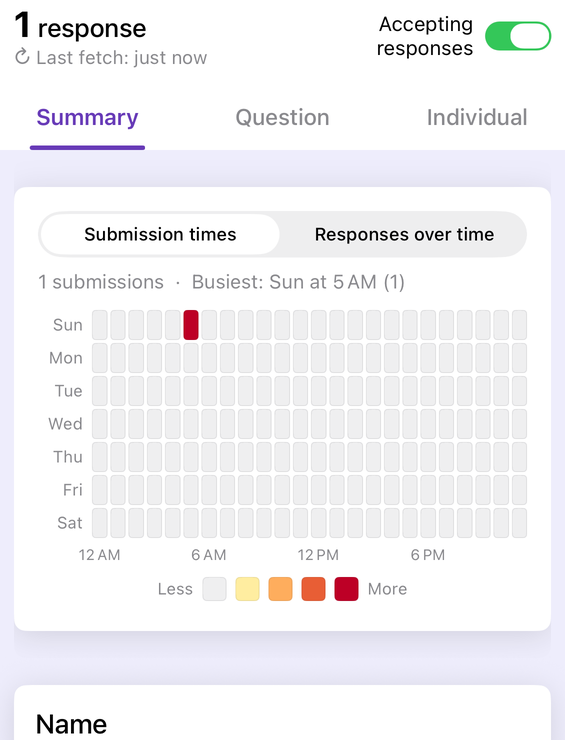
- Summary, Question and Individual — the same three views, as native screens you can swipe between.
- Submission times and Responses over time — a heatmap and trend chart showing when submissions actually arrive, including the busiest day and hour.
- Word frequency — “the most common words in text answers”, for short-answer and paragraph questions, where a bar chart is useless.
- Filter — filter responses by date, email, question, or score. This one is a Pro feature.
- Print all — print every response or save them as a PDF, from the phone. Also a Pro feature.
What each route is bad at
None of these is a clean win. Choosing well means knowing the failure mode you are accepting.
- The mobile website is a desktop page on a 6-inch screen. Charts overflow, the editor chrome eats the viewport, and it needs a live connection every time. Nothing about it is designed for a phone, because Google never designed it for one.
- The Sheets app loses the analysis. A response table is not a summary — no charts, no per-question view, no “show me submission number 47 as the person filled it in”. Wide forms mean a lot of horizontal scrolling, and it only works if someone linked a spreadsheet first.
- A third-party app is another app to install and another sign-in, it is not made by Google, and some of what it does sits behind a paid tier. If you check responses twice a year, it is overkill.
- Sheer size defeats the first two. Google documents that if you don't find the response summary, it can be because your form has more than 50,000 responses, and if you don't find the question or individual view, it can be because your form has more than 10,000 responses.
Which route do you want?
| Your situation | Use | What you give up |
|---|---|---|
| One quick check, nothing installed | The form's Responses tab in a mobile browser | Comfort — it is the desktop editor, shrunk |
| Reading the raw data regularly | Link to Sheets, then the Google Sheets app | The charts, and the Individual view |
| A file to archive or send on | Download responses (.csv), from a computer | A phone-only workflow — it is a desktop path |
| Summary, Question and Individual, on the phone | Form+ Responses tab | It is a third-party app, not Google's |
Your responses, in a Responses tab built for a phone
Form+ signs in to your own Google account and opens your real Google Forms, with Summary, Question and Individual views, submission charts and word frequency on the phone you already carry.
Get Form+ free on the App StoreFrequently asked questions
Is there a Google Forms app for iPhone?
No. Google publishes iPhone apps for Drive, Docs, Sheets, Slides and Gmail, but there is no Google Forms app on the App Store. Google's own routes to your responses on a phone are the mobile website and the linked spreadsheet in the Google Sheets app.
Can I see Google Forms responses in the Google Sheets app?
Yes, once the form is linked to a spreadsheet. Google documents Link to Sheets in the Responses tab, and it documents a Google Sheets app for iPhone and iPad that opens, views and edits Google spreadsheets. You get the raw response table, not the charts.
Where are the Summary, Question and Individual views on a phone?
They exist only inside the Responses tab of the Forms editor, which Google documents as a desktop click path. On a phone you reach them through the mobile website, or through a native Forms client such as Form+ that reproduces the same three views.
Why can I not see the response summary at all?
Google documents two size limits. If you do not find the response summary, it can be because your form has more than 50,000 responses. If you do not find the question or individual view, it can be because your form has more than 10,000 responses.
Can I download Google Forms responses on a phone?
Google documents exactly two export options — Link to Sheets and Download responses (.csv). Both are described from the desktop editor, so on a phone the linked spreadsheet is the practical route: it syncs to the Sheets app without a download step. If you want a PDF instead, see the guide below.