How to add a drop-down in Google Forms
Last updated September 2026 · ~6 minute read
Short answer: add a question, then set its type to Dropdown — Google's own label for it. Type one option per line. Google describes the type as “You can provide a set of options. Responders can choose only one option.” The reason to pick it over Multiple choice is rarely looks: Dropdown is one of only two question types that can branch.
Form+ edits your real Google Forms on your own Google account. Add a Dropdown question, turn on “Go to section based on answer”, import a long option list from a CSV, and see the whole flow as a branching map. Get Form+ free on the App Store.
It takes about fifteen seconds to add. The rest of this page is the part people usually find out later — what a dropdown will not do, and when Multiple choice is the better answer.
Add a Dropdown question
- Open a form in Google Forms.
- On the right, click Add to insert a new question.
- To the right of the question title, “choose the type of question you want” and pick Dropdown.
- Type the question, then enter each option on its own line. Press Enter after each one to start the next.
- Turn Required on if an answer is compulsory.
- Open More (the three dots on the question) for Shuffle option order and Go to section based on answer.
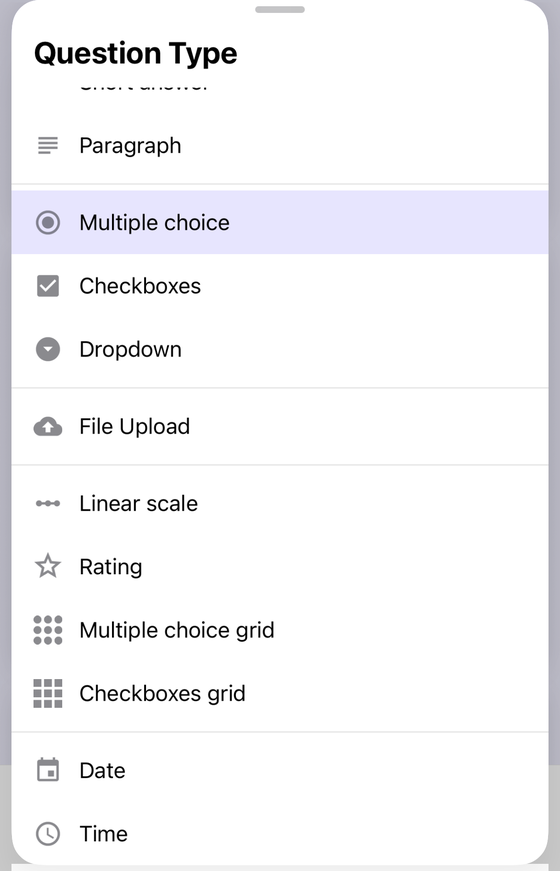
Note the two spellings. Google's question type list says Dropdown, while its help articles write “drop-down questions” in prose. They are the same thing, so search for either.
How many options can a drop-down have?
Google publishes no limit on the number of options in a dropdown. Not a high one, not a low one — it is simply not documented, so any specific number you read elsewhere was not published by Google.
The nearest published ceiling is a different measurement entirely. Google's Edit your form page says you can “add and edit up to 300 pieces of content, like questions, descriptions, images, and videos” (and up to 75 sections). That counts blocks in the form — a question is one piece of content whether it holds three options or ninety. So a 200-option dropdown does not consume 200 of your 300; it consumes one. Long option lists run into respondent patience long before they run into a Google limit.
Dropdown or Multiple choice?
Both are single-select. Google's wording for the two is nearly identical — “You can provide a set of options. Responders can choose only one option” — so the data you collect is the same shape either way. The honest differences are small, and worth knowing before you pick:
| Dropdown | Multiple choice | |
|---|---|---|
| Answers allowed | One | One |
| Screen space | One row, whatever the option count | One row per option |
| Respondent effort | Tap, then scroll the list, then tap | One tap |
| Images on options | No | Yes |
| “Other” write-in | No | Yes |
| Shuffle option order | Yes | Yes |
| Branch to a section | Yes | Yes |
| Response validation | No | No |
Pick Dropdown when the list is long enough that laying it flat would dominate the page — countries, departments, a product catalogue, thirty class names. A dropdown keeps the form short and scannable.
Pick Multiple choice when there are only a handful of options, when you want the options visible without a tap, when an option needs a picture, or when people need an “Other” box to type their own answer. Google documents “Other” for Multiple choice and Checkboxes; a dropdown has no equivalent.
Where it genuinely does not matter: branching. Both types can route respondents, so conditional logic should never be the thing that decides between them. Nor should shuffling — Google states “You can shuffle answers to multiple choice, checkbox, and drop-down questions,” so all three support it. With five or six plain text options and no branching involved, the choice is cosmetic. Pick the one that looks right on a phone and move on.
What a drop-down cannot do
It has no response validation
This trips people up, because “make them pick from a list” feels like validation. It is not, in Google's sense. Google's rules page documents rules for short answer, Paragraph, checkboxes, Multiple choice grid and Checkbox grid questions — Dropdown is absent from that list. You cannot attach a regex, a number range, or a minimum-selections rule to a dropdown.
What a dropdown does is narrower and, for many forms, enough: it only offers valid answers, so nothing invalid can be submitted. But you get no error message, no conditional rule, and no way to accept an answer outside the list. If you need a typed answer checked against a rule, that is a Short answer question with a validation rule — see Google Forms data validation.
It cannot show images on options
Google's documentation is specific: “You can add an image to a question or an answer for multiple choice or checkbox questions.” Dropdown is not in that sentence. Dropdown options are plain text. If respondents need to see the thing they are choosing — a colour, a seating plan, a product photo — that is a real reason to use Multiple choice instead, even with a long list.
The branching trick that makes dropdowns worth it
Here is the fact most guides leave out. Google's help page on showing questions based on answers is blunt about it: “Go to section based on answer” is only available for Multiple choice and Dropdown question types.
Out of the full question type list — Short answer, Paragraph, Multiple choice, Checkboxes, Dropdown, File upload, Linear scale, Rating, the two grids, Date and Time — exactly two can decide where a respondent goes next. A dropdown is one of them. That makes it the natural front door for a long triage list: forty request categories in one compact control, each one routing to the section that asks the right follow-up questions.
Set it up by opening More on the dropdown question and choosing Go to section based on answer, then setting a destination per option. The full walkthrough, including section breaks and the traps in reordering sections afterwards, is in conditional logic in Google Forms.
Build the dropdown — and its branching — from your phone
Form+ edits your real Google Forms on your own Google account. Add a Dropdown question, turn on “Go to section based on answer”, import a long option list from a CSV, and see the whole flow as a branching map.
Get Form+ free on the App StoreFrequently asked questions
What is a drop-down called in Google Forms?
Dropdown. That is the label in the question type list. Google's help pages also write it as “drop-down” in prose, so both spellings refer to the same question type.
How many options can a Google Forms drop-down have?
There is no option limit published by Google. The nearest documented ceiling is the whole form: you can add and edit up to 300 pieces of content, like questions, descriptions, images, and videos. Options are not counted as pieces of content in that wording.
Can a drop-down question use response validation?
No. Google's rules page documents rules for short answer, Paragraph, checkboxes, Multiple choice grid and Checkbox grid questions. Dropdown is not among them. A dropdown constrains answers by only offering valid ones, which is not the same as a validation rule.
Can I add images to drop-down options?
No. Google documents that you can add an image to a question or an answer for multiple choice or checkbox questions. Dropdown options are text only, so if the options need pictures, use Multiple choice instead.
Can a drop-down send people to a different section?
Yes. Google states that “Go to section based on answer” is only available for Multiple choice and Dropdown question types, so a dropdown is one of only two ways to route respondents through a form.