Google Forms for job applications
Last updated September 2026 · ~10 minute read
Short answer: a Google Form is a capable application intake form and nothing beyond it. Two documented limits decide the design before you write a question. A File upload question for a CV forces every applicant to sign in to a Google Account — and Google disables that question type outright when “The form is stored in a shared drive”, so a team-owned form and a CV upload cannot both exist. Decide which you need first.
Form+ sets the response cap, schedules the application window open and closed, exports the shortlist and flags duplicate submissions — on your real Google Forms and your own account. Get Form+ free on the App Store.
Hiring is where a form's defaults matter most: the people filling it in are strangers who owe you nothing and will abandon a form that demands an account. This page sticks to what Google publishes and names where it is silent.
Build the application form
- Decide where the form lives first. A form in a shared drive belongs to the team and cannot take file uploads; a form in someone's My Drive can take uploads and belongs to that person. See the next section.
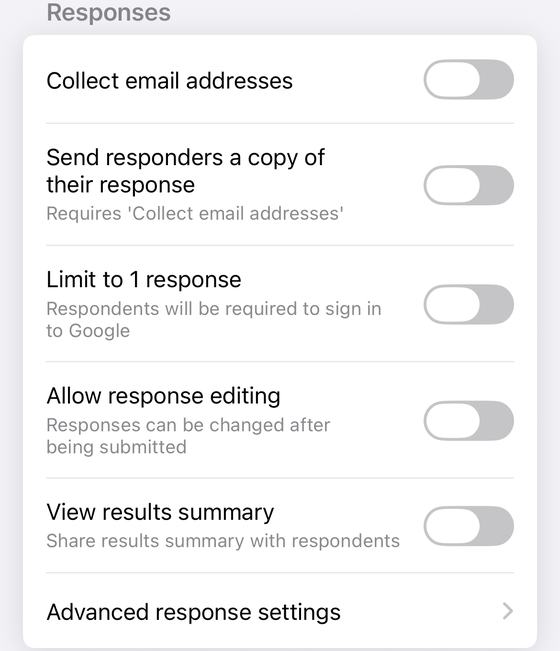
- Turn on email collection. Settings → next to Responses click the Down arrow → under Collect email addresses choose Verified or Responder entry. Nothing else gives you a way to reach an applicant, and adding it later leaves the earlier rows blank forever. (Collecting email addresses.)
- Ask the identifying questions. Name, contact details, and the role applied for — Multiple choice rather than a text box if there is more than one post, because a typed job title cannot be filtered reliably or drive branching.
- Add the screening questions as Multiple choice or Dropdown. Right to work, notice period, location, shift availability. The question type is a hard constraint, not a preference; the branching section explains why.
- Put the written questions in their own section. Two or three specific Paragraph questions beat one asking why the applicant wants the job. They accept only length and regular-expression rules (data validation), so that is prose you will read, not data you will sort — and a section of their own lets screened-out applicants skip them.
- Handle the CV. Either a File upload question, with the sign-in it requires, or a short answer asking for a link. Google documents no third route.
- Publish, then set the closing date. The closing controls exist only on a published form, so this really is last. Share the responder link, then set the deadline.
The CV problem
Almost every application form wants a CV, and this is where Forms is most awkward. The File upload question works, but Google's page on choosing a question type attaches two conditions to it:
“To answer this question, responders need to sign in to a Google Account.”
“For the form owner, uploaded files are stored in a new folder on Google Drive.”
The sign-in is a barrier on a public advert — not an inconvenience, a filter. Someone who finds the vacancy on a job board and has no Google account, or one they would rather not attach to a job application, cannot submit, and you never know they tried. Inside a Workspace domain it costs nothing; everyone is signed in already. Which one you are running is the first thing to settle.
The files land on your quota. CVs accumulate in a folder in the Drive of whoever owns the form and stay after the vacancy closes. Ceilings are on file upload limits; the question itself is in add a file upload question.
The alternative is a link rather than a file: no account, no quota, at the price of links that rot or are permission-locked.
The shared drive conflict, which is the sharper problem
A hiring form should usually belong to the organisation, not to whoever created it, and on a work or school account the documented way to do that is a shared drive. On the same help page, under File upload:
“Important: You can’t use this question type, if: The form is stored in a shared drive. Your administrator turns on Data Loss Prevention.”
So the two things a serious hiring process wants — a form the team owns, and a CV on each application — are mutually exclusive by documented design. Not a bug to work around, not a setting to find: Google states the restriction, never explains it, and publishes no supported way to have both. Three options remain. Keep the form in an individual's My Drive and accept that the applications belong to that account; move it to a shared drive and collect CV links; or keep the form in the shared drive and ask the shortlist for documents by email. (What the move costs.)
Screening questions and branching
The genuinely good part. A knockout question near the top — right to work, a certification, shift availability — plus Go to section based on answer means someone who cannot do the job answers three questions, not fifteen.
The constraint is a one-line tip on Google's page about showing questions based on answers: “Go to section based on answer” is only available for Multiple choice and Dropdown question types. Nothing typed can be routed on: no “if this answer contains”, no numeric threshold, no length test. An answer that must change what the applicant sees next has to be a list of options you wrote in advance.
One honest wrinkle: Google's question-type page says of Checkboxes that “based on a responder's answers, you can send them to a certain section of the form”, which that tip contradicts. Google publishes both and reconciles neither; build on the narrower claim, made on the page documenting the feature. Detail in conditional logic; the full list in all question types.
Applicant data is other people's data
The responses belong to the form, which belongs to the Google account that owns it, and everyone with edit access can read every application. Link the form to a spreadsheet and that sheet is a separate file with its own sharing list — Google's note on the view and manage responses page is blunt: “If you’ve shared a form with a collaborator, they may also have access to the form’s linked spreadsheet. If you want to remove a collaborator, you'll have to remove them from the form and the spreadsheet separately.” A CSV download makes a third copy that leaves Google entirely, and uploaded CVs sit in a Drive folder of their own.
Google publishes no way to redact one question out of a shared results summary — View results summary is per form, on or off — and documents no record of which editor opened which response. Where Google is silent we say so rather than guess.
What obligations any of that puts on you is not something this page can tell you; that depends on who you are, where you are, and who is applying. This is only a map of where the data sits. The fuller map is in Google Forms data privacy, and who sees what once you share is in sharing with collaborators.
Where it stops being the right tool
Not a dismissal — a boundary. Forms is excellent at intake and has nothing for what follows:
- No stages. A response is a row and stays a row. Applied, screened, interviewed, offered, rejected — none of that exists in Forms. You maintain a status column by hand, and two people editing it is how candidates get contacted twice, or not at all.
- No scoring you did not build yourself. Google says you “can make an answer key on certain question types”, which marks an answer right or wrong. It has no opinion about a better answer to an open question, the only judgement hiring is made of. Forms can disqualify; it cannot rank.
- No correspondence. The only automatic email Forms sends an applicant is a copy of their own answers, with email collection on — and Google's tip adds that receipts can be lost to spam filters. An acknowledgement, an interview invitation, a rejection: none come from the form, and there is no stored wording to reuse for them either — see Google Forms email templates.
- No audit trail. Forms keeps version history for the form, not a record of who read or exported a response.
A test: one role and thirty applications, and a form plus a spreadsheet is proportionate and free. Hiring continuously, or several people acting on one candidate, and reconciling by hand costs more than a tool built for it — Google Forms for small business makes that argument in full.
What genuinely helps
Three settings do real work here, and all three are off until you turn them on.
Email collection is the only thing that gives you a way back to a candidate. Verified records the signed-in Google address; Responder entry lets anyone type one, which is what a public advert wants. Limit to 1 response carries the sign-in cost — “to access and fill out the form, users must sign in to their Google Account” — so leave that one off.
A close date or a response cap makes the advertised deadline real. On a published form, under Accepting responses, click Set close date or response limit, then On a date → Choose date and time, or After a number of responses. Both are off by default and neither exists before publishing. Two caveats Google states for the cap: the number must exceed the responses already received, and “if multiple people respond at the exact same time, the form accepts responses regardless of the response limit”. Write the closing message while you are there. More in setting a deadline and limiting responses.
Exports are how the shortlist leaves the form: Link to Sheets for a spreadsheet you can add columns to, Download responses (.csv) (or Excel) to take them out of Google.
On iPhone and iPad, Form+ drives the same three on your real Google Forms. Response Limiter and Form Scheduler close a vacancy on a count or a date, and the scheduler also opens one at a set time — the half Google has no documented answer for. Export responses produces CSV and Excel from the phone, and Duplicates & spam flags repeat submitters. Those four are PRO features in the app.
Close the vacancy from your phone
Form+ sets the response cap, schedules the application window open and closed, exports the shortlist and flags duplicate submissions — on your real Google Forms and your own account.
Get Form+ free on the App StoreFrequently asked questions
Can applicants attach a CV to a Google Form?
Yes, through a File upload question, with two costs Google states on the same page: “To answer this question, responders need to sign in to a Google Account,” and “For the form owner, uploaded files are stored in a new folder on Google Drive.” Inside a Workspace domain that sign-in costs nothing; on a public advert it filters out anyone without a Google account.
Why is file upload unavailable on a form in a shared drive?
Because Google disables it there. Its page on choosing a question type says, under File upload: “Important: You can’t use this question type, if: The form is stored in a shared drive.” Google states the rule and never explains it, so a team-owned application form and a CV upload are mutually exclusive.
Can a Google Form send applicants to different questions based on their answers?
Only from a Multiple choice or Dropdown question. Google's tip is explicit: “Go to section based on answer” is only available for Multiple choice and Dropdown question types. Nothing typed into a short answer or paragraph box can be routed on, so a screening answer that must change the form has to be a list of options.
Can I close applications automatically on a date?
Yes, on a published form. Under Accepting responses, click Set close date or response limit, then under On a date click Choose date and time; closing after a number of responses is the other option. Both are off by default and neither exists before publishing, so a stated deadline does not enforce itself.
Can Google Forms track candidates through interview stages?
No. A response is a row and it stays a row. Nothing in Forms models a stage, a decision, an interviewer note or a rejection, and the only automatic email it sends an applicant is a copy of their own answers. Tracking who has been phoned happens in a spreadsheet you maintain by hand.