How to change a Google Form question type
Last updated September 2026 · ~8 minute read
Short answer: click the question, then use the type control to the right of the question title and pick the new type. That part is one click. The part nobody warns you about is what the new type cannot hold — and Google's help pages say nothing at all about it. Work on a duplicate first if the form already has responses.
Form+ puts the type picker in the question header, highlights the type you are on, and asks before it converts a question on a form that already has responses. Get Form+ free on the App Store.
This is a guide about the second half of that sentence. The mechanic takes ten seconds; the damage takes a week to notice.
The mechanic, in Google's own words
Google documents choosing a type as part of building a question, not as a separate operation. Edit your form gives the whole of it: “To edit a question, header, or description, click the text you want to change,” and, for the type itself, “To the right of the question title, choose the type of question you want.” Choose a type of question for your form repeats the same placement and then lists the twelve types: Short answer, Paragraph, Multiple choice, Checkboxes, Dropdown, File upload, Linear scale, Rating, Multiple choice grid, Checkbox grid, Date and Time.
- If the form has responses, duplicate it first and convert on the copy.
- Click the question so it opens into its editing state.
- Open the type control beside the title and choose the new type.
- Re-check options, validation, branching and the answer key before you move on.
That is the entire published procedure. There is no separate “change the type” help page, no warning dialog documented, and no list of what survives.
What Google does not publish
This is worth stating plainly, because the internet is full of confident rules that Google has never written down. As of September 2026, Google's help pages do not say:
- what happens to your answer options when a question stops being a choice question;
- what happens to a response validation rule when the type can no longer carry one;
- what happens to “Go to section based on answer” when the type is no longer eligible for it;
- what happens to a quiz answer key and its point value;
- anything whatsoever about answers already collected.
So the honest way to reason about a conversion is not to memorise rules. It is to look at the shape of the two types and ask a single question: does the destination type have a place to put this? Where there is no place, there is no rule needed — the setting simply has nowhere to live.
The four shapes of loss
Four directions account for nearly every unpleasant surprise. Three of them are bounded by Google's own documentation; the fourth is pure structure.
1. Choice types → text types: the options have nowhere to go.
Multiple choice, Checkboxes and Dropdown are the three types built around a list of options. Short answer, Paragraph, Linear scale, Rating, Date and Time are not — none of them has an option list anywhere in its structure. Convert in that direction and your carefully written options are not “moved” or “hidden”; the new question has no field they could occupy.
Moving between the three choice types is the one genuinely soft conversion, because all three hold the same kind of list. One asymmetry to know about: Google documents an “Other” write-in for Multiple choice and Checkboxes, and a dropdown has no such option — so that one row has nowhere to land even inside the choice family. Our drop-down guide covers that difference in detail.
2. Text types → choice types: there is nothing to start from.
The reverse direction loses nothing, because there was nothing to lose — but it leaves you with an empty shell. A Paragraph question converted to Multiple choice arrives with no options at all, and whatever people typed into it was free text that no option list could ever have represented. This direction is safe and useless in equal measure: you will be writing the options from scratch either way, which is exactly the case where adding a fresh question is the cleaner move.
3. Anything → a type that cannot carry response validation.
This one is bounded by documentation rather than guesswork. Use response validation covers exactly five question types: Short answer, Paragraph, Checkboxes, Multiple choice grid and Checkbox grid. Every other type — Multiple choice, Dropdown, File upload, Linear scale, Rating, Date, Time — has no validation section in Google's own documentation. Convert a validated Short answer into a Dropdown and the regex, the number range or the length limit has no home in the destination. Google does not publish whether the rule is discarded or merely dormant, which is precisely why you should assume it is gone and check.
4. Anything → a type that cannot branch, or cannot be graded.
Two more hard, documented boundaries. On branching, Google states that “Go to section based on answer” is “only available for Multiple choice and Dropdown question types.” Two types out of twelve. A Multiple choice question with per-option routing converted to Checkboxes — a change that looks almost cosmetic — leaves a form whose sections are no longer wired together. Our conditional logic guide covers how that routing is built in the first place.
On quizzes, Google's answer-key page names six types that can take an answer key: Short answer, Multiple choice, Checkboxes, Dropdown, Multiple choice grid and Checkbox grid. Paragraph and Rating are absent from that list. Convert a graded question into either and the answer key has no destination — a detail that matters more than it sounds, because a quiz question with no key stops contributing to a score that people may already have received.
What about responses already collected?
Google is silent. Not vague — silent. Its documentation on changing a type does not mention responses, and its documentation on responses does not mention type changes. We are not going to invent a rule to fill that gap, and neither should any other page you read.
What we can tell you is the correct procedure under uncertainty, and it is the same one we would use ourselves: duplicate the form, convert the question on the duplicate, submit a test response, and open the Responses tab. Five minutes on a copy beats a discovery on a live form. Our guide on duplicating a Google Form covers the copy step.
Form+ takes the same position in the app itself. When you change the type of a question on a form that already has responses, it stops and asks first, with wording deliberately kept inside what we have actually measured: changing the type makes it a new question, so answers already collected will no longer be attached to it, and that cannot be undone. It does not claim the answers are deleted, because they are not — they stay in the form's response records. On a form with no responses yet, no prompt appears.
Changing a type from your phone
The type control is part of the question header in Form+ too. Tapping it opens the same Question Type sheet used for adding a question — the same twelve types, in the same five groups, in the same order. The two sheets are not identical, though, and they differ in two ways rather than one. In change mode the sheet highlights the type the question currently is, and it ends at the twelfth type. In add mode nothing is highlighted, and two further groups are appended below the types: the content blocks Image, Video and Math Equation, then the import routes — add questions from the camera (only on a device that has one), from the photo library, from files, from the clipboard, and a Tutorials row. None of those are question types, which is exactly why change mode leaves them out: there is nothing to convert an existing question into.
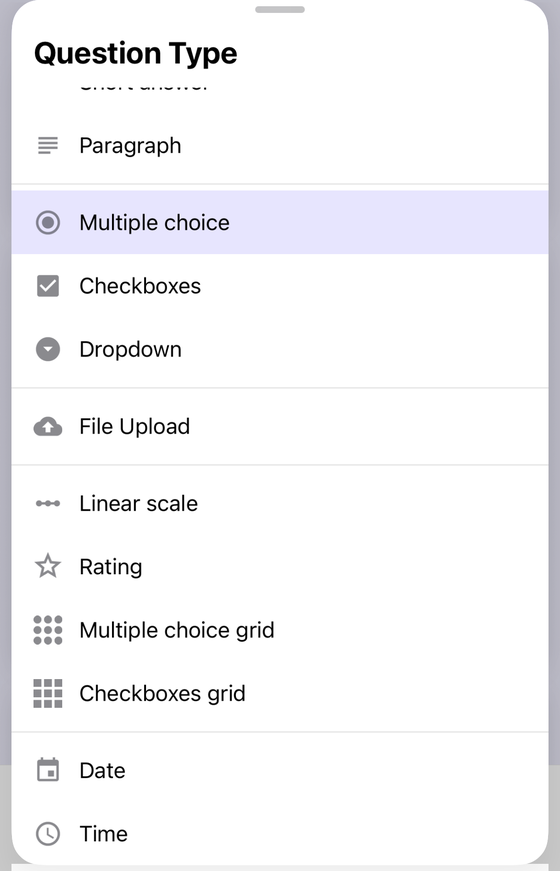
A few behaviours worth knowing, all of them in the app rather than in Google's editor. Image and video blocks are not answerable questions, so they have no type to change and their headers stay inert. The current type is always kept in the list, so a question never sits on a type the sheet cannot show. And converting to File upload is handled through the same route as adding one — including the same PRO upgrade prompt — because the Google Forms API cannot create a file upload question directly. Our file upload guide explains that constraint.
One more honest example of type loss from our own code, since it is the same problem in a different costume: the CSV question importer in Form+ cannot rebuild grids, file upload or rating questions from a spreadsheet. Rather than quietly importing them as Short answer and pretending the round trip was lossless, it writes the true original type into the file and reports what it could not reconstruct. A type that holds something the destination cannot represent loses it — in a CSV, in an import, and in a conversion.
Convert, or add and delete?
| Situation | Better move |
|---|---|
| No responses yet, any change | Convert in place |
| Multiple choice ↔ Checkboxes ↔ Dropdown | Convert in place |
| Choice type → text type, options you want to keep | Add new, copy the wording over, delete old |
| The question carries validation, branching or an answer key | Add new, rebuild the setting, delete old |
| Live form with responses you still need | Duplicate the form and test the conversion there first |
Converting is fine far more often than the warnings suggest — most questions are a title, a type and nothing else, and those convert cleanly in any direction. The rule of thumb is simply this: the more a question has been configured, the more a conversion is a rebuild wearing a shortcut's clothes. Adding a new question costs a minute and lets you keep the old one until the replacement is verified. That minute is cheaper than the alternative.
Change a question type without opening a laptop
Form+ puts the type picker in the question header, highlights the type you are on, and asks before it converts a question on a form that already has responses.
Get Form+ free on the App StoreFrequently asked questions
Can I change a question type in Google Forms after it has responses?
Google's help pages do not address this at all — they document how to choose a type and say nothing about answers already collected. Because Google is silent, duplicate the form, convert the question on the copy, and check the Responses tab before touching the live one.
Do I lose my answer options when I change a question's type?
Google publishes no rule, but the structure answers it. Multiple choice, Checkboxes and Dropdown all hold an option list, so moving between them has somewhere to put it. Short answer, Paragraph, Linear scale, Rating, Date and Time hold no option list at all.
What happens to response validation and branching?
Validation is documented for five types only — Short answer, Paragraph, Checkboxes, Multiple choice grid and Checkbox grid — and “Go to section based on answer” is documented as “only available for Multiple choice and Dropdown question types.” Convert outside those lists and the setting has nowhere to live.
Is it safer to add a new question and delete the old one?
Often, yes — especially for a question carrying validation, branching or a quiz answer key. Adding a new question gives you a clean question with no half-carried settings, and it lets you keep the old one until you have checked the responses. Converting in place is the better move when the form has no responses yet, or when you are moving between two types that hold the same kind of answer.