Building a consent form in Google Forms
Last updated September 2026 · ~9 minute read
Short answer: Google Forms has no consent field and no signature field. What you can build is a required question whose description carries the statement, plus email collection if you need an identity attached to it. Google stores the answer and a submission timestamp. It does not store a signature, and it does not record which wording of your statement a given response was answering.
Form+ adds a consent statement, a version that moves when the wording does, and an optional signature pad before submit — then posts a real response to your own Google Form on your own Google account. Get Form+ free on the App Store.
This guide sticks to mechanics: which parts of Google Forms do what, and where the record stops. Whether the result is sufficient for your situation is a legal question, not a product question, and it is not one this page answers.
What a consent screen is made of, in Google Forms terms
Strip the phrase “consent form” down and it is a handful of separate jobs. Google Forms covers the first three of them with ordinary features, and the last two not at all.
| The job | In Google Forms |
|---|---|
| Show the statement in full | The question Description field, or a title-and-description block |
| Capture an unambiguous agreement | A Required question — a single-option checkbox, or a two-option multiple choice |
| Tie it to a person | Collect email addresses in Settings — off by default on a consumer account |
| Record a signature | Nothing. There is no signature or drawing question type |
| Record which wording was agreed to | Nothing. Responses carry no form revision |
Build it
- Put the statement in a description. Open a form in Google Forms, click Add, and title the question something short — “Consent”. Then click More and Description, and paste the full statement there. Google's page on choosing a question type documents that field as an option on every question. See also adding a question description.
- Make the agreement required. Turn Required on. Google's wording is that you do this “to prevent people from not answering”. A Checkboxes question with one option is the common shape; a checkbox question that is required cannot be submitted unticked. A Multiple choice question with “I agree” and “I do not agree” is the better shape if you want the refusals recorded rather than simply absent.
- Turn on email collection, if you need one. Settings → next to Responses → Collect email addresses. Verified takes the address from the signed-in Google Account; Responder input asks the respondent to type one, which means it is whatever they typed. More in collecting email addresses.
- Decide about signatures before you send it. If a drawn or uploaded signature is genuinely required, that decision changes the whole design — see the section below.
- Save the wording yourself. Paste the statement into a dated document of your own before you publish, and again every time you change it. Google will not do this for you, for the reason set out two sections down.
One more shape worth knowing: if the consent must be read before anything else, put it on its own page with a page break after it, so nobody reaches the questions without scrolling past the statement. See multiple pages.
What Google actually records
Two things, and it is worth being exact because most of the confusion here is about the second one.
A timestamp. The
Google Forms API exposes
createTime on every response, documented as “Timestamp for the first time the response was
submitted”, and lastSubmittedTime for the most recent submission. The linked spreadsheet shows
the same thing as its Timestamp column.
An email address, but only if you asked for one. The API's response object has a
respondentEmail field described as “The email address (if collected) for the respondent”, and
the form's emailCollectionType setting defaults to DO_NOT_COLLECT for a form owned
by a consumer Google account. Google's own help text puts it this way, on the page about publishing and
sharing a form: “Their usernames won't be recorded unless you turn on the ‘Responses’ setting to collect
email addresses.” Note the scope — that sentence sits under the heading
“Limit users to one
response”, as a tip attached to the sign-in that that setting forces. It is not a statement
about every form. But the underlying rule it describes is general: no email collection, no identifier. See
making a form anonymous for the other direction.
That is the whole record. Google does not publish an IP address, a device identifier or a read receipt for the statement, and where Google is silent, this page will not guess.
What Google does not record: which statement they agreed to
This is the gap that matters most and gets written about least. Edit your consent wording in six months, and every response — old and new — sits in one undifferentiated sheet. Nothing in the response says which text was on screen when it was submitted.
The API makes the limit explicit. A form carries a revisionId, but Google documents it as
something that “should be treated opaquely” and that is “only guaranteed to be valid for 24 hours after it
has been returned”. No response object references it. So there is no supported way to reconstruct, from
Google's data alone, the wording a given respondent saw.
The practical workarounds are all manual, and all worth doing:
- Write a version marker into the visible statement itself — “Consent statement v2, 14 March 2026” — so it lands in the description the respondent read, and in your own copy.
- Rather than editing a live consent statement, duplicate the form and retire the old one, so each wording owns its own response set.
- Keep the dated copies. Google Forms does have version history, but it is a recovery tool for the editor, not a per-response audit trail, and it is not addressable from a response.
If you need a signature on it
Google Forms has no signature question type and no drawing question type — the help page listing question
types offers twelve, and none of them is one. We checked the API's live discovery document as well: the
question object supports choiceQuestion, textQuestion, scaleQuestion,
dateQuestion, timeQuestion, fileUploadQuestion,
rowQuestion and ratingQuestion, and nothing else. The only occurrence of the word
“drawing” anywhere in it is DRAWING as an accepted upload file type — a Google
Drawings file — which is not a signature field.
So the routes are the ones set out in full in adding a signature to Google Forms. The one constraint to weigh here, before you design the consent form around it: a File upload question forces authentication. Google's wording is “To answer this question, responders need to sign in to a Google Account.” The same page adds that the question type is unavailable if the form is stored in a shared drive or if your administrator has turned on Data Loss Prevention. That changes who can agree at all — an anonymous public audience simply cannot answer a form containing one. The size and type limits are in file upload limits.
A typed name in a Short answer question avoids that entirely, and records exactly what it records: a string someone typed, next to a timestamp.
A consent gate in Form+, and its one big limit
Form+ renders your real Google Form as native iOS controls, which leaves room for a step Google's own form has nowhere to put. Its per-form Consent gate — a PRO feature — holds the statement, requires agreement before a submission goes through, and optionally shows a signature pad.
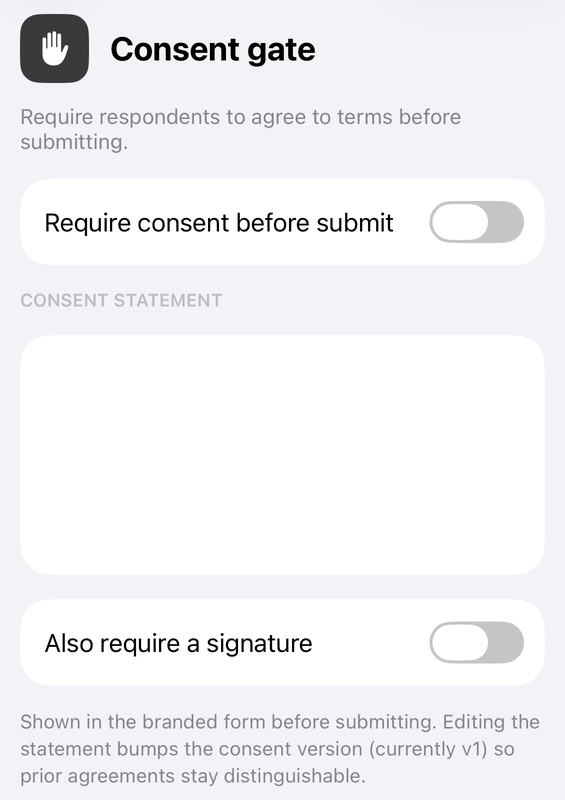
The part Google has no equivalent for is versioning. Editing the statement bumps its consent version, and each agreement is written to that form's Activity log in the app as, for example, “Respondent agreed to consent v1 (signed)” — so agreements to the old wording stay distinguishable from agreements to the new one.
Read this before you plan around it. The consent gate and its signature pad live in the app's own branded fill screen — the form as Form+ draws it. They are not part of your ordinary Google Forms link. Anyone who opens that link gets Google's form, with no consent gate and no signature pad, and our own telemetry says that is very nearly everyone: over fourteen days in September 2026 the app recorded 1,549 filler-link opens against a single branded-fill start. The settings are also stored by the app against that form on the device, not inside the Google Form itself. Treat this as a tool for forms your own staff or clients fill in on a device you control — inspections, intake, on-site sign-off — not as something that adds a gate to a link you post publicly.
And there is a second limit under the first one, which is why this section is worth reading twice. That branded fill screen is opened from a single Preview branded form… row in the editor's Share & Brand menu, and the current build switches that row off. The filter that hides it matches the row's translated title against an English list, so the row is still drawn on a device set to one of the app's 21 other languages; on an English-language device it is not drawn, and the consent gate and its signature pad have no screen in which to appear. The Consent gate… settings screen still opens, and still saves the statement and its version to that device. What it configures is the fill screen you cannot currently get to.
Versioned consent on a real Google Form
Form+ adds a consent statement, a version that moves when the wording does, and an optional signature pad before submit — then posts a real response to your own Google Form on your own Google account.
Get Form+ free on the App StoreOn whether any of this is “enough”
We are not going to tell you. Whether a record of this kind is sufficient depends on your jurisdiction, on what is being agreed to, on who is agreeing and on rules that no form builder can see from here — and nothing on this page, or in any form tool's marketing, is a substitute for asking someone qualified in your own context. What this page can tell you is the mechanics, so that the question you take to them is a precise one: the form can show a statement and require an answer; Google stores that answer, a timestamp, and an email address only if you turned collection on; and it stores nothing about which wording was on screen at the time.
Frequently asked questions
Does Google Forms have a consent question type?
No. Google's help page on choosing a question type lists twelve types and none of them is a consent field or a signature field. A consent form in Google Forms is always an ordinary question — usually a required checkbox — with the statement written into the question's Description.
What does Google record when someone agrees?
The answer itself, and a submission timestamp: the Google Forms API exposes createTime,
described as the timestamp for the first time the response was submitted, and lastSubmittedTime
for the most recent. It exposes respondentEmail only, in Google's words, “if collected”.
Nothing else about the respondent is recorded by default.
Can I see which version of the statement someone agreed to?
Not from Google Forms. A response carries no reference to the form revision it was answered against, and
the API's revisionId is documented as opaque and only guaranteed to be valid for 24 hours. If
you edit the wording, older and newer agreements look identical in the responses. Keep your own dated copy
of each wording.
Is a Google Form enough for consent?
That is not a question about Google Forms, and this page will not answer it. Whether any record is sufficient depends on your jurisdiction, on what is being agreed to and on who is agreeing. This page describes only the mechanics: what the form can ask, and what Google does and does not store. Take the question itself to your own counsel.
Can respondents sign the consent form?
Not with a drawing, because Google Forms has no signature or drawing question type. A File upload question can hold a photograph of a signature, but Google states that responders need to sign in to a Google Account to answer it, and the question is unavailable if the form is stored in a shared drive or if an administrator has turned on Data Loss Prevention.