How to collect payments with Google Forms
Last updated September 2026 · ~9 minute read
A Google Form cannot take a payment itself. There is no payment question, no price field and no checkout step, so nothing you can build inside Forms will ever charge a card. Every method that gets described as “payments in Google Forms” is really a form plus something else — a link out to a payment page, a script that emails one, an add-on that hosts a checkout of its own, or a different product altogether. The four approaches below are the honest set, and each section says what it does not do.
Form+ edits your real Google Forms on iPhone and iPad — your account, your Drive, no migration. The payment still happens at your processor; everything else gets easier. Get Form+ free on the App Store.
This is worth being blunt about, because a lot of articles on this query imply Forms has a payments feature hiding in a settings menu. It does not. Once you accept that the money always moves somewhere else, the real question becomes a much easier one: how far do you want the handoff to be from the form?
A donation is the same problem wearing different clothes, and it is the reason most charities arrive here: nothing below changes because the money is a gift rather than a purchase. Google Forms for nonprofits picks up once that is settled, with the jobs a form does do for one.
How we checked
Rather than repeat what other posts say, we read Google's own documentation: the question types help page, the create-a-form help page, the publish and share page that documents the confirmation message, the Google Forms API reference, and the Workspace pricing comparison. None of them documents a payment, price or checkout capability anywhere in Forms.
The API reference is the most decisive of the five, because it is the machine-readable list of
everything a Google Form is allowed to contain. The question kinds it exposes are
choiceQuestion, textQuestion, scaleQuestion,
dateQuestion, timeQuestion, fileUploadQuestion,
rowQuestion and ratingQuestion. There is no payment kind to leave out.
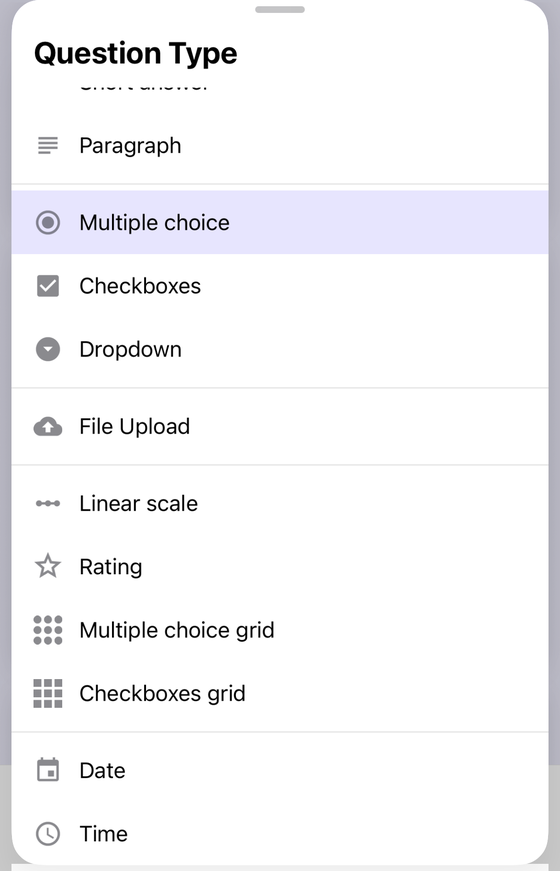
Paying Google more does not change this. The Workspace pricing comparison lists one Forms line, a survey builder, and lists it identically for Starter, Standard, Plus and Enterprise. There is no tier at which payments appear.
Approach 1: Send people to a payment link
The simplest method, and the one most small sellers end up on. You create a hosted payment page with your processor and put the link where the respondent will see it — in the form itself as a text item, or in the confirmation message that appears after they submit. Stripe documents Payment Links as a way to “accept payments online without writing code”: a Stripe-hosted page you create and then “share on social media, in emails, or on your website”. PayPal documents an invoicing equivalent — itemised invoices paid through a secure PayPal page, shared as a URL, an email or a QR code, without building your own payment flow.
Google does document the confirmation message itself: on the publish and share page it says you “can customize the message people get after they submit the form”, edited under Settings ▸ Presentation ▸ Confirmation message.
What it does not do. It does not connect payment to submission. The link is an invitation, not a checkout — a respondent can submit the form and simply never click it, so you are left reconciling who paid against who answered, by hand. It also cannot vary the amount: a single link charges what it was set up to charge, so a form whose total depends on the answers needs one of the later approaches. One caution worth flagging: Google does not document whether a URL typed into the confirmation message renders as a clickable link or as plain text. Blog posts contradict each other on this. Test it in your own form before you rely on it.
Approach 2: A form-submit script (Apps Script)
If you want the payment request to follow the submission automatically, Apps Script is the documented
hook. Google documents an installable
form
submit trigger that “runs when a user responds to a form”, and documents the
event object it receives, which carries a FormResponse representing the
respondent's answers. The
Forms
service lets a script read those answers. So a script can read what someone ordered, work out what they
owe, and email them a payment link for that amount.
What it does not do. Apps Script has no payment capability of its own — nothing in the Forms service or the trigger documentation touches money. It is a generic “something was submitted” hook, and every part of the actual payment still happens at your processor. You are also now maintaining code: the trigger runs under your account, and if it breaks, orders quietly stop being billed while the form keeps happily accepting them.
Approach 3: A Google Workspace Marketplace add-on
Third-party add-ons exist that bolt a checkout onto a Google Form, and they are the closest thing to a native-feeling answer. Two that publish on the Marketplace are Payable Forms, whose listing describes letting “your Google Forms accept payment like magic”, and PayQ, which describes accepting and collecting payments from Google Forms using gateways such as PayPal and Stripe. We are naming these as examples that exist, not as recommendations — we have not tested either, and you should read the listing, the permissions it requests and the vendor's own terms before installing one.
What it does not do. An add-on does not add a payment field to Google Forms, because it cannot — the form still has only the question types above. What it does instead is calculate an amount from the responses and host the checkout on its own infrastructure. That is a meaningful distinction: you are adding a third party between your respondent and your money, granting it access to your form data, and taking on its uptime and its data handling as your own. Note too that these are independent products, not Google ones, however closely their names track the Forms brand.
Approach 4: Use a purpose-built checkout instead
The honest option that most of these articles skip: if taking money is the point of the form, a form product that was built for it will fight you less than a Google Form with three bolt-ons. Vendors document this capability directly — Jotform describes accepting “secure online payments directly through your forms” with more than 40 payment gateways, and Typeform documents a Stripe Payment block for selling products and services or taking donations. If you do not need a form at all, a processor's own hosted page is enough: Stripe Invoicing documents creating and sending a Stripe-hosted invoice from the dashboard with no code.
What it does not do. It does not keep your data in Google. You leave the Forms ecosystem, so responses no longer land in your Drive or flow into the Sheets and reporting you may already have built around them, and collaborators who know Forms have something new to learn. That is a real cost, and it is why plenty of people stay on a Google Form with a payment link even after reading a page like this one.
What taking payments commits you to
Whichever route you pick, accepting money brings obligations that no form solves for you. Receipts, refunds, chargebacks, cancellations and sales-tax treatment are all yours to handle, and they do not appear because a response row did. Card data has a specific rule attached: PCI DSS applies to every entity that stores, processes or transmits cardholder data, and Stripe's security guide puts the merchant's side of it plainly: “Anyone involved with the processing, transmission, or storage of card data must comply with PCI DSS.” This is the concrete reason never to add a short answer question asking for a card number — that would store live card data as plain text in your responses and your linked spreadsheet, and put you in scope for a standard you have no machinery to meet. Payment pages exist precisely so the card is captured by the processor and never reaches you. This is general information rather than legal or compliance advice; if real money is involved, take proper advice for your own situation.
The four approaches compared
| Approach | What it does | What it does not do |
|---|---|---|
| Payment link in the form or confirmation message | No code, no add-on; the processor hosts the page and handles the card | Cannot tie payment to submission or vary the amount; you reconcile manually |
| Apps Script form-submit trigger | Reads the response automatically and can email a request for the right amount | Has no payment capability of its own; it is code you now own and maintain |
| Marketplace add-on | Calculates a total from the answers and hosts a checkout for it | Adds no payment field to Forms; puts a third party between you and your money and your data |
| Purpose-built checkout or form product | Payment is a first-class feature rather than a bolt-on | Leaves Google Forms, and the Drive and Sheets workflow built around it |
Where Form+ fits
Form+ is a native iPhone and iPad client for your real Google Forms, and it is worth being just as clear about its limits: it does not add a payment question to a Google Form either. No client can — the form still has only the question types above, and Form+ never processes a payment or touches card details.
What it does help with is everything around an order form — the parts that are genuinely a client's job: notifications when a response arrives, reviewing responses on your phone, and exporting them when it is time to reconcile against your processor's payouts.
Run your order form from your phone
Form+ edits your real Google Forms on iPhone and iPad — your account, your Drive, no migration. The payment still happens at your processor; everything else gets easier.
Get Form+ free on the App StoreFrequently asked questions
Can Google Forms accept payments?
Not by itself. Google Forms has no payment question and no checkout step, so a form can never charge a card. Everything described as collecting payments with Google Forms is really a form plus something else: a link to a payment page, a script that emails one, an add-on that hosts a checkout, or a different product entirely.
Is there a payment question type in Google Forms?
No. Google's help centre documents the question types as Short answer, Paragraph, Multiple choice,
Checkboxes, Dropdown, File upload, Linear scale, Rating, Multiple choice grid, Checkbox grid, Date and
Time. None of them takes money. The Google Forms API tells the same story: the question kinds it exposes
are choiceQuestion, textQuestion, scaleQuestion,
dateQuestion, timeQuestion, fileUploadQuestion,
rowQuestion and ratingQuestion, and none is a payment kind.
Does a paid Google Workspace plan add payments to Forms?
No. Google's Workspace pricing comparison lists the same single Forms entry, a survey builder, across Starter, Standard, Plus and Enterprise. There is no payment or commerce capability at any tier, so upgrading your plan will not unlock one.
What is the simplest way to get paid from a Google Form?
Create a hosted payment page with your payment processor and put that link where the respondent will see it, usually in the confirmation message or in the form itself. It needs no code and no add-on, and the card details are handled entirely by the processor. The trade-off is that paying is a separate, optional step, so you have to reconcile who paid against who submitted.
Is it safe to ask for card numbers in a Google Forms question?
No, and you should not do it. A short answer question would store card numbers as plain text in your responses and in any linked spreadsheet. PCI DSS applies to anyone who stores, processes or transmits cardholder data, and collecting card details this way puts you squarely in scope while giving you none of the protections a real payment page provides. Use a payment page instead, where the processor captures the card and you never receive the number.