How to make a quiz on Google Forms
Last updated September 2026 · ~8 minute read
Short answer: Open your form, click Settings and turn on “Make this a quiz.” Then on each question click Answer key (bottom left), pick the correct answer, and set the point value (top right). Six question types grade themselves; the rest you score by hand. On an iPhone or iPad, Form+ does the same thing natively.
Form+ edits your real Google Forms natively on iPhone and iPad — quiz mode, answer keys, points, feedback and per-response scores, on your own account. Get Form+ free on the App Store.
This is the full version — including what catches people out: which question types can actually auto-grade, what “automatic” marking really compares, and what happens to the answer keys you have already built if you switch quiz mode back off.
Step 1 — Turn on quiz mode
This is Google's own click-path, from Create & grade quizzes with Google Forms:
- Open your form at forms.google.com.
- At the top, click Settings.
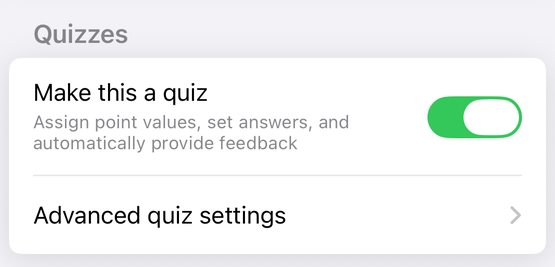
- Turn on “Make this a quiz.”
Nothing is graded until you do this: a form without quiz mode collects answers but has no concept of a correct one. The same page offers a shortcut for a new quiz: “The quickest way to create a quiz is to go to g.co/createaquiz.”
Quiz mode is a property of the whole form, not of a question: in the
Forms REST API
it is one boolean, FormSettings.quizSettings.isQuiz, and in
Apps Script it is
form.setIsQuiz(true).
Step 2 — Add an answer key and points
Google documents this as:
- Add or open a question.
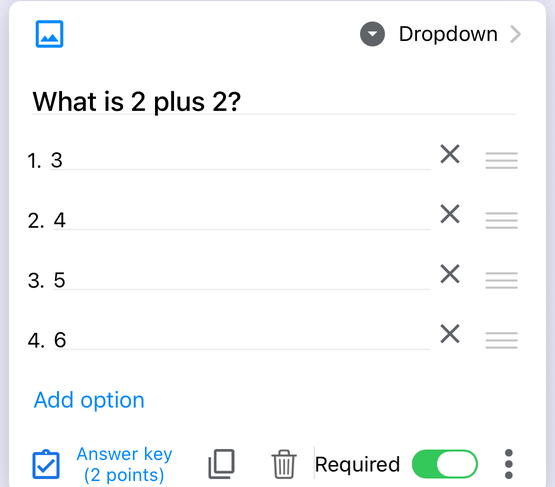
- In the bottom left of the question, click Answer key.
- Choose the correct answer, or answers.
- In the top right, set how many points the question is worth.
- Optionally click Add answer feedback to attach a written explanation, or a YouTube video, shown after the respondent submits.
Set the points deliberately. Apps Script's setPoints(), carried by every gradeable item, is
documented as “Sets the number of points a gradeable item is worth. The default for new items is
0” (CheckboxItem,
and every other type). A key with no point value is marked correct and adds nothing.
In the live discovery
document, Grading.pointValue is “the maximum number of points a respondent can
automatically get for a correct answer. This must not be negative.” No negative marking, and no automatic
way past that value. Google Forms quiz points covers the
totals.
What auto-grading is actually comparing
The help centre describes the buttons; the sharp edges are in the developer documentation, and they explain most “why did it mark that wrong?” complaints.
Answers are compared as text. Google's Set up quiz grading options guide states it flatly: “Except for questions where the answer is via a file upload, the user's answer is captured and evaluated as text … To be correct, the answer must match the answer key exactly.” A date, a time, a scale number all reach the grader as strings.
Single-answer questions can have several right answers. The discovery document's
CorrectAnswers.answers field says a single-valued response “is marked correct if it matches any
value in this list (in other words, multiple correct answers are possible)” — so you can accept both
“color” and “colour”.
Checkboxes are all-or-nothing. The same field continues: for multiple-valued
(CHECKBOX) questions, “a response is marked correct if it contains exactly the values in this
list.” Three of four required boxes is not three quarters of the marks — it is zero. To give credit for
partial knowledge, split the question up.
A zero does not mean wrong. The discovery document attaches an unusually candid warning to
Grade.correct: “A zero-point score is not enough to infer incorrectness, since a correctly
answered question could be worth zero points.” Sort an export by score and a correct answer on a zero-point
question looks exactly like a wrong one.
Short answer questions are graded on exact text. “Paris” and “paris ” are different strings. Add every acceptable spelling as an accepted answer, or use multiple choice.
Which question types grade themselves?
This is the part most guides skip — and Google publishes two sentences that pull in opposite directions. On the same help page, one reads “You can make an answer key on certain question types” and lists six; another reads “Note: You can assign points and add feedback on all question types.” Both are Google's, and true of different things: automatic marking is restricted, points and feedback are not.
The six types that can carry an answer key, per Create & grade quizzes:
- Short answer
- Multiple choice
- Checkboxes
- Dropdown
- Multiple choice grid
- Checkbox grid
The developer documentation draws the same line in different words, and one of the three sources is noticeably thinner:
| Google source | What it says can auto-grade |
|---|---|
| Help centre | Six types, including both grid types |
| Forms API grading guide | Checkbox, Radio and Dropdown via correctAnswers; short answer too, but with generalFeedback only |
| Apps Script reference | CheckboxItem, MultipleChoiceItem and ListItem carry answer-key and points methods — “When used in a quiz, these items are autograded.” GridItem and CheckboxGridItem carry none |
So a grid can hold an answer key in the Google Forms editor, while the Apps Script GridItem and CheckboxGridItem classes expose no way to set one. If you are scripting a quiz, build grids by hand.
Every other type — a paragraph answer, a file upload, a date — still takes points and feedback, but the
grading guide is explicit: “For other types of questions, grading is not automatic and you can only provide
generalFeedback.” Those sit unscored until you grade them in the responses view. For a
hands-off quiz, keep to the six above; quiz feedback covers
which feedback slot each type accepts.
Is there partial credit?
Not automatically: a question is worth its full point value or nothing. Google's only route to a half mark is manual, under Grade question-by-question, where a group of answers can be marked correct, marked incorrect, or given “Partial points: Enter the number of points you want to award.” That is a decision taken after the responses arrive, not a rule the form applies.
⚠️ Before you ever turn quiz mode back off
Worth knowing before it happens: the switch is destructive and the interface says nothing.
Google documents it in the API contract. In the discovery document, QuizSettings.isQuiz
reads: “Whether this form is a quiz or not. When true, responses are graded based on question Grading.
Upon setting to false, all question Grading is deleted.” Grading holds the answer key, the
point value and the feedback — so the toggle does not park your answer keys, it deletes them, and turning it
back on does not bring them back.
We measured the toggle on a real form with two graded responses in September 2026:
- The scores already collected were reset. Every existing response came back scored 0 and stayed there after an explicit refetch: Google does not recompute grades across that cycle.
- The answer keys were gone on a device that had never cached the form — a fresh read showed “0 points” on the form and “Answer key (0 points)” on every question, exactly as the documented deletion predicts. An editor still holding a cached copy kept showing the old keys, which is what makes this loss easy to miss.
If a form has answer keys or submissions you care about, export the responses and write down the keys before you touch that toggle. Nothing in the Google Forms interface warns you.
What the API will not do here
Two limits matter before you plan automation. Grades are readable and nothing more: every field of
Grade — score, correct, feedback — is marked “Output
only,” so REST can report a mark but not award one. And the quiz settings it exposes are the one flag:
FormSettings carries only quizSettings and emailCollectionType, and
QuizSettings only isQuiz. The respondent-visibility choices — whether people see
missed questions, correct answers and point values — have no field at all, and neither does releasing
grades. Releasing quiz grades covers that.
Doing it from an iPhone or iPad
The Google Forms web editor works on a phone, but answer keys and point fields are small targets in a mobile browser tab. Form+ is a native iOS app that edits your real Google Forms on your own Google account. With quiz mode on, every question shows an Answer key (N points) control; on a grid question it sums the per-row points, and a file-upload question shows no answer key control at all — matching Google's own carve-out for file uploads.
Two things worth stating plainly. It warns before you turn quiz mode off: the switch raises a “Turn off quiz mode?” dialog saying the scores already recorded are reset to zero and the point values and answer keys permanently deleted. And the Advanced quiz settings row under that toggle is a PRO feature — tapping it on a free account raises the upgrade screen instead. It is also the one row in that section that is not always drawn: it appears only once the form is already a quiz, and only where the app’s newer-features flag, and several separate things can switch that flag off — your region, a remote switch, and, unless that test is itself disabled remotely, an install dating from before 2024 is on for you. On an account without it the Quizzes section is the switch alone, so an absent row is not a locked one. Quiz mode, the answer key control, point values and per-question feedback sit in the ordinary editor, not behind that screen. This is not an exhaustive list of what is free or PRO in the app.
Quick comparison
| Google Forms (web) | Form+ (iPhone/iPad) | |
|---|---|---|
| Quiz mode | Yes | Yes |
| Answer keys & points | Yes | Yes |
| Answer feedback | Yes | Yes |
| Warns before wiping answer keys | No | Yes |
| Comfortable on a phone | Not really | Built for it |
| Cost | Free | Free app |
Build and grade quizzes from your phone
Form+ edits your real Google Forms natively on iPhone and iPad — quiz mode, answer keys, points, feedback and per-response scores, on your own account.
Get Form+ free on the App StoreFrequently asked questions
Which Google Forms question types grade themselves?
Six: short answer, multiple choice, checkboxes, dropdown, multiple choice grid and checkbox grid. Points and feedback go on any type, but only those six are marked automatically.
Does turning quiz mode off delete my answer keys?
Yes. Google's API contract for isQuiz says that on setting it to false, “all question Grading
is deleted” — answer keys, point values and feedback — and turning it back on does not restore them. Scores
on existing responses also came back as zero in our September 2026 test. Export first.
Does a Google Forms quiz award partial credit?
Not on its own. A question is worth its full point value or nothing, and a checkbox answer counts only if it contains exactly the values in the answer key. Partial points are a manual step taken while grading question-by-question.
Why does a correct answer show a score of zero?
Because new questions start at zero points. Google's note on the grade object warns that “A zero-point score is not enough to infer incorrectness, since a correctly answered question could be worth zero points.” Check the point value before assuming the marking is broken.
Can I build a Google Forms quiz on an iPhone?
Yes — either way. The Google Forms web editor works on a phone, but answer keys and point fields are small targets in a mobile browser tab. Form+ is a native iPhone and iPad app that edits your real Google Forms, including quiz mode, answer keys, point values and per-question feedback, on your own Google account.