How to add a checkbox question in Google Forms
Last updated September 2026 · ~8 minute read
Short answer: add a question, then set its type to Checkboxes. Google describes that type as one where “You can provide a set of options” and “Responders can select multiple answers.” If you want to cap how many boxes get ticked, Google documents three rules for checkboxes questions — Select at least, Select at most and Select exactly.
Form+ edits your real Google Forms on your own Google account — add a Checkboxes question, set Select at least, at most or exactly, and write your own error text, all from an iPhone or iPad. Get Form+ free on the App Store.
Checkboxes is the question type people reach for when one answer is not enough — which toppings, which days you are free, which of these apply to you. It is a small change from Multiple choice with two consequences that catch people out later: what it does to your spreadsheet, and whether it can branch.
Add a Checkboxes question
- Open the form in the Google Forms editor.
- Google's instruction for a new question is simply: “On the right, click Add.”
- Then, “To the right of the question title, choose the type of question you want” — pick Checkboxes.
- Type the question, then add your options, one per line.
- Optionally add “Other”, and optionally set a rule for how many boxes may be ticked. Both are covered below.
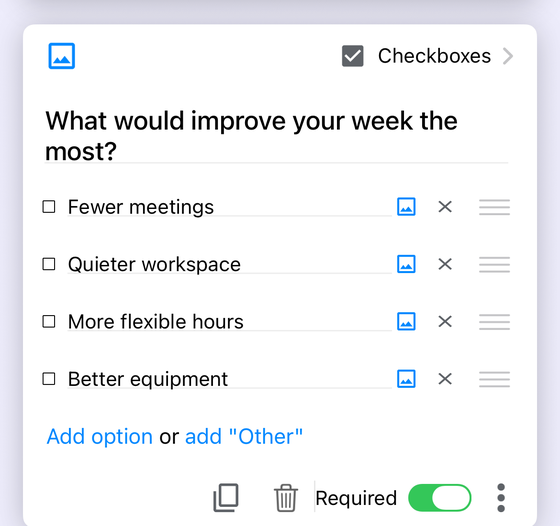
Checkboxes vs Multiple choice
This is the only decision that really matters, and it is one question: can a responder give more than one answer?
Google's question-type reference draws the line in a single word. Of Checkboxes it says responders “can select multiple answers.” Multiple choice takes exactly one selection, and Dropdown is the same single-answer choice presented as a list. If a responder could reasonably say “both” or “all of these”, you want Checkboxes; if the answers are mutually exclusive — a yes/no, a single tier, one date — you want Multiple choice.
The cost of choosing Checkboxes is analysis. One answer per person is a column you can sort, count and chart. Several answers per person is a list inside a cell, and every count you want out of it needs a formula. That is not a reason to avoid Checkboxes — only a reason not to use it where one answer will do.
Limiting how many boxes they can tick
Google's response-validation help documents a set it calls the “Rules for checkboxes questions”. There are three, and the wording is Google's own:
- Select at least — “Set a minimum number of boxes that can be checked.”
- Select at most — “Set a maximum number of boxes that can be checked.”
- Select exactly — “Specify the number of boxes that must be checked.”
“Pick your top three” is Select exactly, not an instruction in the question text and a hope. “At least one” is how you make a checkbox question genuinely required in spirit rather than in name.
Add the error message too. Google's instruction: “To add an error message, on the right, in the ‘Custom error text’ field, enter an error message. Responders will get this message when their answer doesn't follow the rules.” Without it, someone who ticks four boxes when you wanted three sees a generic complaint and has to guess. With it, they see the rule in your words. Response validation is genuinely offered on this question type, not just described in the docs. Our data validation guide covers the same mechanism for the other question types.
“Other”, shuffling, and images on options
Three smaller things Google documents for this question type:
- “Other” is supported. Google's note on Checkboxes: you can “include ‘Other’ as an option. Responders can type a short answer.” Useful, and a reliable source of one-off values in your results that no chart will group for you.
- Shuffling is supported. “Click Shuffle option order” applies to “multiple choice, checkbox, and drop-down questions” — worth it when option order could bias the answer.
- Images on an option are supported. Google: “You can add an image to a question or an answer for multiple choice or checkbox questions.” Checkboxes are explicitly named, so a pick-any-that-apply question can be pictures rather than words.
Checkboxes also take an answer key. Google lists the types that can have one as “Short answer, Multiple choice, Checkboxes, Dropdown, Multiple choice grid, Checkbox grid” — and adds, more broadly, that “You can assign points and add feedback on all question types.” So a checkbox question can be graded in a quiz, with the key being the exact set of boxes you marked correct.
Can a checkbox question branch? Google says both.
This one deserves a warning rather than an answer: Google's own documentation contradicts itself, and we are not going to pretend otherwise.
The page on showing questions based on answers carries this tip:
“‘Go to section based on answer’ is only available for Multiple choice and Dropdown question types.”
The page listing the question types says this under Checkboxes:
“Based on a responder's answers, you can send them to a certain section of the form.”
Those cannot both be true as written. Neither help page settles it — but Google's developer
documentation does, and it sides with the narrower claim. The Apps Script reference for
Choice.getPageNavigationType()
says the navigation attached to an option “applies only to choices associated with
MultipleChoiceItems; for other choices, it returns null”, and the class
reference backs that up by what it omits: MultipleChoiceItem and ListItem (the
dropdown) each publish a createChoice overload that takes a destination, and
CheckboxItem publishes none. So two Google surfaces say Multiple choice and Dropdown only,
one says Checkboxes can branch, and the REST API says nothing either way — its goToAction
field carries no type restriction, though the neighbouring isOther field in the same schema
does carry one, which makes the omission silence rather than permission.
We build on the narrow claim, and the practical evidence agrees with it. In practice, clients built on Google's Forms API do not offer the branch on this question type: in Form+, a Checkboxes question's own menu holds exactly three entries — Description, Response validation and Shuffle option order — with no “Go to section based on answer” among them, while the same menu on a Multiple choice question does show it. That is one client reading the API, not a statement from Google, and it overrules neither page above.
So test it in your own form — a concrete check, not vague advice. Add a Checkboxes question, open that question's own menu, and see whether “Go to section based on answer” is listed. What is in your account, today, is the only reliable answer available.
If it is missing and you need the branch, the workaround is the same one branching guides have always
given: convert the deciding question to Multiple choice or Dropdown, and keep Checkboxes for the
questions that only collect. Our conditional
logic guide and the drop-down guide both
cover that route. And note what happens where a multi-tick branch works at all — Google does document this,
on the Apps Script PageNavigationType
page: “If the respondent chose multiple options with page-navigation instructions on the same page,
only the last navigation option has any effect.” Note the scope — the same page, not the
same question, so a later question on the same section can override an earlier one. The same page adds
two rules worth knowing: “Choices that use page navigation cannot be combined in the same item with
choices that do not”, and “Page navigation also has no effect on the last page of a form”,
which is why a destination set on your final section does nothing.
What it looks like in your spreadsheet
Here is the honest position: Google does not document this. Its help pages explain how to link a form to Sheets and where the responses land, but nowhere do they state what happens to the cell when a responder ticks several boxes — whether the values are joined, what separates them, or what an untouched question leaves behind.
That silence matters more than it sounds, because everything downstream depends on it. A single answer per row is countable; several answers stuffed into one cell are not, until you have decided how to split them. So do the thirty-second experiment before you build anything: submit one test response with two boxes ticked and one with none, link the form to a sheet, and read the cells. Whatever you find there is what your formulas, filters and pivot tables have to handle.
Which question type do you want?
| You need… | Use |
|---|---|
| Several answers from one person | Checkboxes |
| Exactly one answer, options visible | Multiple choice |
| Exactly one answer, long option list | Dropdown |
| “Pick three” enforced, not requested | Checkboxes + Select exactly |
| Branching you can rely on today | Multiple choice or Dropdown |
| Results that are easy to count | Multiple choice, one question per topic |
Build checkbox questions from your phone
Form+ edits your real Google Forms on your own Google account — add a Checkboxes question, set Select at least, at most or exactly, and write your own error text, all from an iPhone or iPad.
Get Form+ free on the App StoreFrequently asked questions
How do I let people pick more than one answer in Google Forms?
Use the Checkboxes question type. Google describes it as: “You can provide a set of options” and “Responders can select multiple answers.” Multiple choice, by contrast, allows exactly one selection.
Can I limit how many checkboxes someone ticks?
Yes. Google documents three rules for checkboxes questions: Select at least (“Set a minimum number of boxes that can be checked”), Select at most (“Set a maximum number of boxes that can be checked”) and Select exactly (“Specify the number of boxes that must be checked”).
Can a checkbox question send someone to a different section?
Google's own help pages disagree. The branching page says “Go to section based on answer” is “only available for Multiple choice and Dropdown question types”, while the question-types page says of Checkboxes that “Based on a responder's answers, you can send them to a certain section of the form.” Test it in your own form before you rely on it.
How do checkbox answers appear in Google Sheets?
Google's help pages do not document it. They explain how to link a form to a spreadsheet but never state how several ticked boxes are written into the single cell for that question, so check a test response against your own sheet before building formulas on top of it.