How to password protect a Google Form
Last updated September 2026 · ~9 minute read
Short answer: there is no password setting, and there never has been. No switch in Google Forms, no field in the API, no method in Apps Script. What people build instead is an access code question whose answer is checked by a response validation rule. That works, it takes about four minutes, and it stops the submission rather than locking the form — a distinction that decides whether it is any use to you.
Form+ gives you response validation, regular expressions and custom error text on iPhone and iPad — on your own Google account, on your real forms. Get Form+ free on the App Store.
The build is the easy part. The part worth reading first is which of the two possible designs Google's own branching rules allow, because only one of them exists, and it is not the one most people picture.
How we checked
Three sources, each linked where it is quoted. Google's help centre for the documented click-paths; the machine-readable Forms API v1 discovery document (revision 20260909) for what the API can and cannot express; and the Apps Script Form class for what a script can reach. Where a claim is ours rather than Google's, it says so.
What Google documents, and what it does not
Search the Google Forms, Drive and Sheets help pages together with the Forms REST and Apps Script references, and the word password turns up in three places, none of them about protecting a form: a phishing clause in the Forms and Docs policy, a Sheets-versus-Excel comparison, and a Drive page about Office files. That last one is the closest Google comes to addressing the idea directly, and it is worth reading as written:
“Native Google Docs, Sheets, and Slides don't support passwords.” — Google Drive Help, Work with Office files
Note what that sentence does not say: Forms is not in the list. It is a statement about three other editors. But the same page explains the model that Forms sits inside too — for an Office file whose password is removed, “access is still controlled by Drive's sharing feature.” Access in Google's products is a permission on a file, not a secret typed into a document.
The API agrees, and this part is checkable rather than inferred. The discovery document contains the
strings password, passcode, login and secret
zero times. The schemas that govern who can answer are small enough to print in full:
FormSettings has two properties, quizSettings and emailCollectionType;
PublishState has two, isPublished and isAcceptingResponses. There is
no third thing to set, so no app built on that API can offer you one.
Apps Script gets one step closer and then stops. The
Form
class does carry
setRequireLogin(requireLogin), described as setting “whether the form requires respondents
to log in to an account in the same domain or a subdomain before responding” — but Google files it,
along with its getter requiresLogin(), under Deprecated methods, with the note
“This function is deprecated and should not be used in new scripts.” Scripting is not the back door
either.
The access code gate, step by step
This is the thing that actually works, and it is a question, not a setting.
- Add a Short answer question and call it Access code. Put it at the top of the form. The name matters only to the respondent.
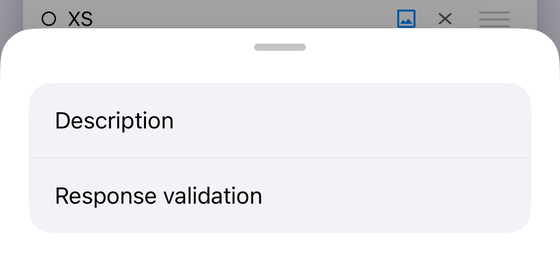
- Open the question's More menu and choose Response validation. Google's documented path is exactly that — “To set up rules, click More. Click Response validation” — and it adds a caveat worth keeping: “The rule options available depend on the type of question chosen.”
- Pick Regular expression and the Matches operator. Google
describes the category as being
“To require text answers to match certain formulas that you choose”. Type the code between
a caret and a dollar sign —
^HARVEST2026$— so that a longer answer containing the code does not also pass. Our regex validation guide covers the four operators and the dialect question in full. - Write custom error text that does not repeat the code. That text is shown to anybody whose answer breaks the rule, so “Wrong code” is fine and “The code is HARVEST2026” is not. Name who to ask instead.
- Mark the question required, then send a test submission. A rule has nothing to check when the box is left empty. Fill in the published form yourself, type a wrong code, and confirm it is refused before you share the link — that is a check on your own form, not a promise from this page.
What the gate does, and the one thing it cannot do
It blocks the submit, not the reading. Response validation runs as somebody fills the form in, so anyone who opens your link has already read every question before the rule so much as complains, and nothing they have seen gets taken back. The gate is at the exit.
The obvious fix is to move it to the door: put the code in section one, and send anyone who types it correctly on to section two where the real questions live. Google Forms cannot do that, and the reason is a hard rule rather than a missing option — “Go to section based on answer” is offered only on Multiple choice and Dropdown questions. A Short answer question has no fixed list of answers to hang a destination on, so it can route nobody. Our conditional logic guide has the full set.
Which leaves exactly two designs, and each fails at one end:
| Design | Hides the questions? | Hides the code? |
|---|---|---|
| Short answer + Regular expression rule | No — the whole form is readable first | Yes — the code is only in the rule |
| Multiple choice router + go to section | Yes — the later sections stay hidden | No — the code is printed on screen as an option |
That is the entire design space. If you need both properties at once, Google Forms is not the tool, and no add-on running inside it changes the rule above.
Four ways the code gets out
These are ours, not Google's, and they are the reason this page calls the result a speed bump rather than a lock.
- Everyone gets the same code. There is no per-person code and no way to revoke one person's without changing it for the whole class or list.
- A pre-filled link carries the answer. The pre-fill feature puts answers in the URL, so one forwarded link can hand the code to everybody who receives it.
- Validation is a courtesy, not a check. It runs in the respondent's browser as they type and is exactly as strong as their willingness to cooperate — a point our regex guide makes at length.
- The questions leak before the code does. Anyone with the link has already read the form, which matters most for the case people usually want this for: a quiz.
What to use instead, by what you actually want
Every row here is a control Google documents, and each links to the guide that covers it properly.
| What you want | The control Google gives you |
|---|---|
| Only people in my organisation | Restrict to users in [your domain] and its trusted organizations — a Workspace setting, named in those words on Google's help page |
| To know who answered | Collect email addresses, which is a separate setting from anything about access |
| One attempt each, and a sign-in | Limit to 1 response. Google's tip on that setting reads: “To access and fill out the form, users must sign in to their Google Account.” |
| The form shut at a set time | A close date or response limit, which ends collection for everybody at once |
| The link to stop working entirely | Unpublish it — the
isPublished half of the pair above |
None of these is a password, and none of them is offered here as one. They are also the only controls Google publishes, which is the honest shape of the answer.
On iPhone and iPad
In Form+, the native client for the real forms in your own Google account, the access code build is available in full, and the app's own limits are worth naming precisely rather than in general terms.
Response validation sits in a question's own overflow menu, and the row is drawn under one condition: the question is a Short answer, Paragraph or Checkbox question. On every other type the row is simply absent — the same three types Google names in its own instructions for the feature.
What sits behind the row is conditional too, and the counts are worth stating rather than rounding to “the same as the web”. On a Short answer question the category list is four rows — Number, Text, Length, Regular expression. On a Paragraph question it is two — Length and Regular expression, with no Number and no Text. On a Checkbox question it is a different three — Select at least, Select at most, Select exactly — and Regular expression is not among them. So the access code above has to be a Short answer question in the app as well. Choose Regular expression there and the operator list is the four Google publishes — Contains, Doesn't contain, Matches, Doesn't match — so step three is writable from the phone onto your real form.
What the app does not have is a password row, for the same reason nothing else does: there is no field for it. Its Manage access screen reports Drive permissions and whether the form is published, and our domain restriction guide covers what that screen can and cannot tell you. That is not an exhaustive account of the app's settings — only the ones this page's subject touches.
Build the access code from your phone
Form+ gives you response validation, regular expressions and custom error text on iPhone and iPad — on your own Google account, on your real forms.
Get Form+ free on the App StoreFrequently asked questions
Can you put a password on a Google Form?
Not as a setting. Google Forms has no password field anywhere in its settings, its REST API or its Apps Script reference. What people build instead is an access code question whose answer is checked by a response validation rule, which stops the submission rather than locking the form.
Is a passcode question on a Google Form secure?
No, and it should not be described as though it were. Everybody gets the same code, there is no way to revoke one person's, a pre-filled link can carry the answer, and the questions are readable before the code is ever typed. Treat it as a speed bump that keeps casual link-sharers out.
Why can't the access code hide the questions until it is entered?
Because Google Forms only lets Multiple choice and Dropdown questions send someone to a different section. A Short answer question cannot route anybody, so a validated code can only block the submit button. Making the code a Multiple choice option would route people, but it would also print the code on the form.
Does the Google Forms API have a password field?
No. The
Forms REST API v1 discovery
document, revision 20260909, contains the strings password, passcode,
login and secret exactly zero times. FormSettings carries two
properties, quizSettings and emailCollectionType, and PublishState
carries two, isPublished and isAcceptingResponses. There is nothing else to set.
How do I make a Google Form private instead?
Use the controls Google does document. On a Workspace account, Restrict to users in [your-company.com] and its trusted organizations limits who can open it. Limit to 1 response forces a sign-in: Google's tip reads that “To access and fill out the form, users must sign in to their Google Account.” Unpublishing the form closes it to everyone.
Can I set up an access code from my phone?
Yes. In Form+ for iPhone and iPad, the Response validation row sits in a question's own overflow menu and is drawn for Short answer, Paragraph and Checkbox questions, which is the same set Google names. It has to be a Short answer question for an access code: that is the only one of the three whose category list carries Regular expression alongside Number, Text and Length, and its operators are the four Google publishes — Contains, Doesn't contain, Matches and Doesn't match.