Google Forms responses without a spreadsheet
Last updated September 2026 · ~8 minute read
Short answer: you never have to link one. Google's own page on where responses go offers the two as alternatives, not as a setup step you skipped: “When responders fill out your form, you can find a summary of the responses in the form or you can store the responses in a linked Google Sheet.” With nothing linked you can still read every answer, download a CSV, get an email per submission, and pull the lot from code. What a spreadsheet adds is arithmetic — not custody of the data.
Form+ reads your real Google Forms on iPhone and iPad — your account, your Drive, nothing linked and nothing copied. Get Form+ free on the App Store.
The confusion is a wording accident. The control is called Select destination for responses, and “destination” sounds like somewhere the answers are going rather than somewhere a copy is additionally sent. Plenty of people link a sheet they never open, because they assume the responses are in transit to it.
A destination is optional, and Google says so twice
The first place is the help centre sentence above, from Choose where to save form responses: a summary in the form or a linked Sheet. Not a prerequisite, a fork.
The second is the Apps Script reference, which models the destination as a nullable property of the
form. Form.getDestinationId() “Gets the ID of the form's response destination”, and
Form.removeDestination()
ends its description with the giveaway: “If the form does not currently have a response destination,
this method has no effect.” A form with no destination is not a form in a broken state that Google is
being polite about. It is the default.
Which of the two stores is authoritative when both exist is a separate question, and the answer has consequences for counting; we work through it in where a Google Forms response count comes from. This page is about the case where there is only one store.
Four documented routes that never touch Sheets
1. Read them where they are
The Responses tab carries three views — Summary, Question and Individual — and they work identically whether or not a destination is set. What each one is for, and what Google does and does not promise about the automatic charts, is covered in Google Forms response charts.
Worth knowing before you go hunting, because it is the honest weakness of the sheet-free route: the whole published navigation of the Individual view is “To move between responses, click Previous or Next”, plus one tip — “To select from a list of responses, click the Down arrow.” Two buttons and a picker. Nothing documents a search, a filter or a sort over your own responses.
2. Download a CSV, which links nothing
View & manage form responses gives the path in three steps: “Open a form in Google Forms. At the top of the form, click Responses. Click More ▸ Download responses (.csv).” This is the route people miss, because it sits under the same menu as the linking controls and looks like part of them. It is not: it creates no Drive file, sets no destination, and leaves the form exactly as it was. You get a snapshot on your computer.
If the file is the point, our guide to exporting Google Forms to Excel covers what the columns look like and the encoding trap that makes accented characters arrive wrong.
3. Get an email per submission
Same menu, same page: “Open a form in Google Forms. At the top of the form, click Responses. Click More. Click Get email notifications for new responses.” Google adds a pointer for anything richer — “To get more notifications options and send customized follow up emails to respondents, download the Form notifications add-on.” Neither needs a spreadsheet in the loop.
4. Pull them from code
This is the route that settles the argument, and it deserves its own section.
The API reads responses directly — and cannot write them
The forms.responses
resource publishes exactly two methods: get and list. Both read the form's own
responses. Neither knows or cares whether a sheet exists.
Now look at what authorisation they take. The
list method
accepts three OAuth scopes: two broad Drive scopes, and one narrow scope named
forms.responses.readonly. The
machine-readable discovery
document spells that one out as “See all responses to your Google Forms forms”. Read the list
of scopes in that document end to end and there is no responses scope without readonly in the
name — and no method anywhere in the API that creates, edits or deletes a response.
Google's own code samples land on the same scope. On
Retrieve
forms and responses, the Python snippet sets
SCOPES = "https://www.googleapis.com/auth/forms.responses.readonly" and the Node snippet passes
the identical string. That is the shape of a sheet-free pipeline: it can read everything and corrupt
nothing. A spreadsheet cannot make that promise, because a spreadsheet is a document anyone with access can
type into.
Two practical notes from the reference. Paging is on you — pageSize is documented as
“If unspecified or zero, at most 5000 responses are returned” — and the only documented
filter is a timestamp comparison, which is enough to ask for everything since your last run.
Live updates, with no sheet in the middle
A linked spreadsheet is the usual answer to “tell me when something arrives”. The API has its own, and
the event source is the form itself. Google's
push
notifications guide documents EventType.RESPONSES, delivered to a Cloud Pub/Sub topic
“usually within minutes of the change”.
Two details the tutorials skip, both stated plainly by Google. The notification is a nudge, not the data: “Notifications do not contain detailed form or response data. After each notification is received, a separate API call is required to fetch fresh data.” And it expires — “Your watch lasts a week, but you can extend it at any point before it expires by making a request to watches.renew().” A sheet-free live pipeline therefore needs a weekly renewal job, and the failure mode if you forget is silence rather than an error.
So what is the spreadsheet actually for?
Being honest about this is the point of the page. A sheet is not custody and it is not a backup of last resort. It is a calculator, a permissions surface and an undo history.
| Job | Form only | With a linked sheet |
|---|---|---|
| Read one submission | Individual view, Previous and Next | One wide row |
| Read one question across everyone | Question view | One column |
| Averages, pivots, cross-tabs | Nothing documented | Yes — this is the real reason |
| Hand someone the data | Download responses (.csv) | Share the file |
| Recover something you overwrote | Nothing documented | Drive version history |
| Very large forms | In-form views drop out at Google's thresholds | Keeps working, to its own threshold |
The thresholds in that last row are real, published, and behave by disappearing rather than warning — they are collected in Google Forms response limits. And if you decide you do want a sheet after all, linking is retroactive and the mechanics are in seeing responses in Google Sheets.
Where Google publishes nothing
A page that lists only the documented routes is misleading by omission. These we checked and could not find answered anywhere — not in the help centre, the Apps Script reference, the REST reference, the discovery document, or Google's published code samples.
- How long the form keeps a response. No retention statement, no ageing-out rule, no documented maximum age. The form's store is described as existing; it is never described as expiring.
- Why writes are split between two products. Apps Script can write into the store —
Form.createResponse()“Creates a new response to the form”, saved by callingFormResponse.submit()— while the REST API cannot, and has no scope that would allow it. Google documents both halves and never explains the asymmetry. - Searching your own responses. Previous, Next and a drop-down list of submissions are the whole published navigation. Nothing documents a find, a filter or a sort inside the Responses tab.
Doing this from an iPhone or iPad
Every route above except the CSV download is written as a desktop click path. Form+ is a native iPhone and iPad client that signs in to your own Google account and reads the form's own responses through Google's official Forms API — no spreadsheet required, and none created.
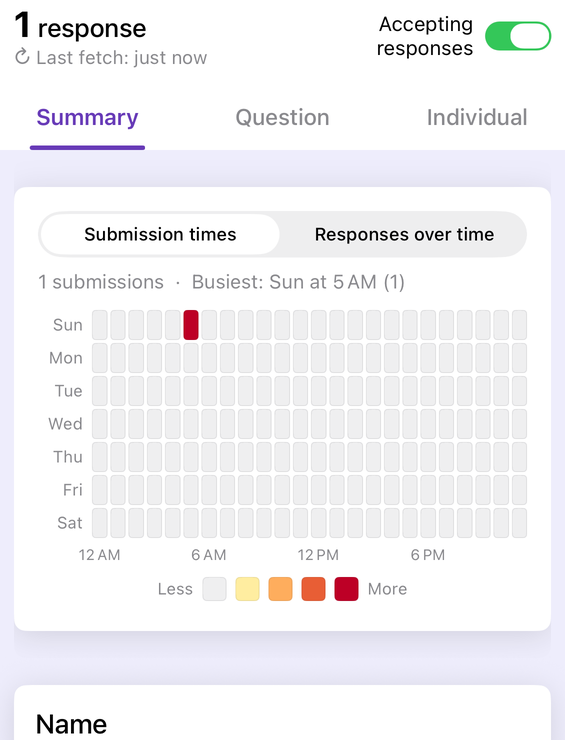
On that Responses screen, reading is free: the three views, Answer rate for completion and skip rates, Word frequency for text answers, Label responses by, Delete all, the Event check-in scanner, and Find a person's data (GDPR), which is a data-subject-request tool and is free. Reading is not throttled; refreshing is. A free user can only refresh form responses after a wait, currently set to 30 minutes.
Filter is PRO, as are Export responses (CSV and Excel), Export PDF report, Print all, Export to Sheets, Email responses, Notifications, Record MP4, Response Reader, View File Uploads and the chart tools (change type, copy, save, share). That is the Responses screen specifically, not a full list of the app's free features.
One of those rows depends on something other than your tier, and it is worth knowing which way round it fails. Notifications appears only on a form your own account owns. On a form someone else shared with you, Form+ removes it from the Manage menu and removes the matching bell from the editor toolbar — the row is absent, not locked, so you are not hunting for a padlock that upgrading would open. Nothing you can buy adds it; the owner has to switch notifications on, or ownership has to move in Google Drive. The same is true of the Form Scheduler and the Response Limiter in the editor. Everything else listed above is a tier question, not an ownership one.
Your responses, without a spreadsheet in the way
Form+ reads your real Google Forms on iPhone and iPad — your account, your Drive, nothing linked and nothing copied.
Get Form+ free on the App StoreFrequently asked questions
Do I have to link a spreadsheet to a Google Form?
No. Google's help page on
choosing where to save responses presents the two as alternatives: you can find a summary of the
responses in the form, or store them in a linked Google Sheet. The Apps Script reference confirms a
destination is optional — removeDestination() “has no effect” if the form does not currently
have one.
Can I download Google Forms responses without linking a sheet?
Yes. Google documents a direct CSV download: open the form, click Responses at the top, then More ▸ Download responses (.csv). It is a download rather than a link, so it creates no Drive file and sets no destination on the form.
Can I be told about new responses without a spreadsheet?
Yes, two documented ways. In the Responses tab, More ▸ Get email notifications
for new responses sends you mail per submission. In code, the Forms API delivers an
EventType.RESPONSES event to a Cloud Pub/Sub topic, “usually within minutes of the change”.
Neither involves a sheet.
Can anything write a response through the Google Forms API?
Not through the REST API. forms.responses publishes only get and
list, and its one narrow scope is forms.responses.readonly — “See all responses to
your Google Forms forms”. Apps Script is the exception:
Form.createResponse()
“Creates a new response to the form”, saved by calling FormResponse.submit().
What do I actually lose by not linking a spreadsheet?
Arithmetic and recovery. Nothing inside Forms averages, pivots or cross-tabulates, and the in-form views drop out on very large forms at Google's published thresholds. A linked sheet is an ordinary Drive file, so it also carries version history the form's own responses do not. You lose none of the answers themselves.