Google Forms quiz points
Last updated September 2026 · ~9 minute read
Short answer: a point value belongs to the question, not to an answer. Turn on quiz mode, open Answer key in the bottom left of a question, and “In the top right of the question, choose how many points the question is worth.” You can do that on every question type Google offers — but only six of them will be marked for you. The rest are points a human has to award.
Form+ edits your real Google Forms natively on iPhone and iPad — quiz mode, answer keys, point values and per-question feedback, on your own Google account. Get Form+ free on the App Store.
That gap is the thing to understand before you build a quiz around a total score. Google is happy to let you put 20 points on a paragraph essay question. It will never award a single one of them automatically, and nothing in the editor tells you so.
Points go on everything. Marking does not.
On Create & grade quizzes with Google Forms, Google writes “You can make an answer key on certain question types” and then names exactly six: Short answer, Multiple choice, Checkboxes, Dropdown, Multiple choice grid and Checkbox grid. A few lines below the same instructions, a note reads: “You can assign points and add feedback on all question types.”
Both sentences are on one page and they are not in conflict — they describe two different features whose reach happens to differ. Points are universal. Automatic marking is not.
| Question type | Can carry points | Marked automatically |
|---|---|---|
| Short answer | Yes | Yes |
| Multiple choice | Yes | Yes |
| Checkboxes | Yes | Yes |
| Dropdown | Yes | Yes |
| Multiple choice grid | Yes | Yes |
| Checkbox grid | Yes | Yes |
| Paragraph | Yes | No — not on Google's list |
| Rating, Linear scale, Date, Time, File upload | Yes | No — not on Google's list |
The practical consequence: a quiz whose questions add up to 100 points does not mean a respondent can receive 100 points at submission time. If 30 of those points sit on paragraph questions, 30 of them are an IOU that somebody has to settle by opening the responses and typing numbers in.
A point value is a property of the question
This is where most confusion starts, and Google's own API reference settles it in one line. The
Forms API discovery document puts
pointValue on a question's Grading object and defines it as
“Required. The maximum number of points a respondent can automatically get for a correct answer. This
must not be negative.” It is typed as a 32-bit integer.
Three things follow, and all three are questions people ask constantly:
- You cannot score individual options differently. There is one number per question, not one per answer. Google documents no per-option point value anywhere.
- You cannot set negative marking. The field “must not be negative,” so a documented penalty for a wrong answer does not exist.
- It is a ceiling, not a guarantee. The word Google uses is maximum — the most the autograder will hand out, before a human touches anything.
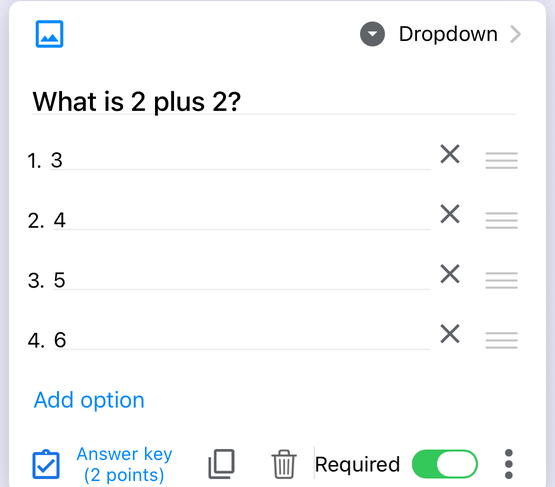
What the total score actually counts
Every graded response carries a totalScore, which the API describes as “the total number
of points the respondent received for their submission… This includes points automatically awarded via
autograding adjusted by any manual corrections entered by the form owner.” It is only set
“if the form was a quiz and the response was graded.”
Two details in the typing are worth more than they look. The per-question point value is an integer, but the score awarded for an answer — and the total — are both typed as floating-point numbers. Whole numbers go in; the type that comes back out can hold a fraction. Google publishes no statement about whether a fractional award is accepted, so treat half-marks as untested rather than supported.
The other is a warning Google buries in the field describing whether an answer was correct: “A zero-point score is not enough to infer incorrectness, since a correctly answered question could be worth zero points.” A zero-point question is a legitimate thing to build — an ungraded warm-up inside a graded quiz — and it means you cannot read a scoresheet column of zeros as a column of mistakes.
Partial credit is a human decision
Google does document partial credit, but only in one place, and it is not automatic. Under Grade question-by-question — Responses › Question — the instructions offer three moves for a group of answers:
- Full points: “Click Mark correct.”
- Partial points: “Enter the number of points you want to award.”
- No points: “Click Mark incorrect.”
Nothing on that page describes the autograder ever awarding part of a question. The API agrees, in the
bluntest possible way, for the type where people most expect partial credit. Of the answer key it says: for
single-valued questions “a response is marked correct if it matches any value in this list,” and for
“multiple-valued (CHECKBOX) questions, a response is marked correct if it contains exactly
the values in this list.”
Three of four checkboxes right scores zero, automatically. “Exactly the values” is all-or-nothing. If you want a four-part question to be worth four points, Google's documented route is four questions — or you grade it by hand.
One more constraint sits on hand-grading, and it catches people out. Google's instructions for grading individual responses open with a condition: “If you collect email addresses, you can assign points and leave feedback on individual responses.” No such condition is attached to the question-by-question view, and Google says nothing about what individual grading looks like on a form that collects no email addresses at all.
When the respondent sees the number
One setting governs this, and it is about scores rather than about any particular question. Under Settings › Release grades:
- Immediately after each submission
- Later, after manual review
Google states the default as “Grades will release immediately.” Choosing the second option means the release is a thing you do by hand: Responses › Individual, Release score, tick the people, Send emails and release — and that whole flow depends on having collected email addresses.
Separately, under Respondent settings, Google says you “can choose if people can see missed questions, correct answers, and point values.” Point values are listed there explicitly, so a respondent seeing their total is not the same thing as a respondent seeing what each question was worth.
Changing points after responses have arrived
This is the single most-asked question about quiz points, and the honest answer is that Google does not publish one. The quiz help page covers creating an answer key, grading, and releasing grades. It never mentions editing a point value on a live quiz, and it makes no statement about whether responses collected under the old value are rescored.
Two documented facts are worth carrying into that silence.
The first is a gap in the audit trail. A response's lastSubmittedTime is
“the most recent time the response was submitted,” and the API adds, flatly:
“Does not track changes to grades.” So if a score changes — by your regrade, or by anything else —
no timestamp on that response moves. There is no published field that records when a grade changed or who
changed it.
The second is about the quiz switch itself, not the points. The API's description of the
isQuiz setting says that “Upon setting to false, all question Grading is deleted.”
On paper that makes the quiz switch destructive to every answer key and point value on the form. Our own
quiz guide tested the round trip in September 2026 and
found the keys and points present again after switching quiz mode back on — but the scores already recorded
against existing responses came back as zero and stayed there.
In our own testing on 12 September 2026 we saw a related effect that Google does not document: when a graded multiple-choice question lost its correct answer, responses already collected were re-marked against the emptied key, and the Summary view simply stopped reporting a correct-response count for that question. Nothing warned us. That is an observation from one form on one day, not a published rule — but it is reason enough to export your responses before editing points on a quiz that is already live.
The short answer question nobody answers
If a short answer key is “Paris,” does “paris” earn the point? Does “Paris ” with a trailing space?
Google is silent. The quiz help page says nothing about case, capitalisation, spelling or whitespace. The API says a response is correct “if it matches any value in this list” and never defines matching, and the field holding a respondent's text is documented only as “the text that the user entered.” There is no published rule to cite in either direction.
What the documentation does give you is the workaround, stated plainly: the answer key holds “a list of correct answers,” and for a single-valued question any entry in that list counts. Add every spelling you will accept. That is a documented capability; guessing at Google's matching rules is not.
Setting points from an iPhone or iPad
Point fields are small targets in a mobile browser tab. Form+ is a native iOS client for
the Google Forms already in your own Drive, and it writes grading through Google's official Forms API — the
same pointValue and feedback fields described above, including on the question types Google will
not mark for you, such as paragraph and rating. Its editor also keeps a running Points total
in the toolbar, which appears only when the form is a quiz, so the number you are building towards is visible
while you build it.
Two of its quiz tools are paid. The Gradebook & Scoreboard — every respondent's score, a pass mark, ranking and export — is a PRO feature, as is Email on pass, which emails respondents who score at or above a pass mark you set in points.
Build and score quizzes from your phone
Form+ edits your real Google Forms natively on iPhone and iPad — quiz mode, answer keys, point values and per-question feedback, on your own Google account.
Get Form+ free on the App StoreFrequently asked questions
Can I give different points to different answers in one question?
Google documents no mechanism for it. In the Forms API the point value sits on the question's
grading object, not on an option, and is described as “the maximum number of points a
respondent can automatically get for a correct answer.” The help page matches: “In the top right of
the question, choose how many points the question is worth.” One number, one question. Splitting the
options into separate questions is the only documented way to score them differently.
Can I change a question's points after people have already submitted?
Google's quiz help page never raises the subject, and publishes no statement about whether responses
already collected are rescored. The API adds one detail worth knowing: lastSubmittedTime
“Does not track changes to grades,” so a regrade leaves no timestamp behind at all. Export your
responses before you edit points on a quiz that is already live.
Does Google Forms give partial credit automatically?
Google documents partial credit only as something a person awards by hand. In the question-by-question grading view the three choices are “Full points,” “Partial points: Enter the number of points you want to award,” and “No points.” Automatic marking is all-or-nothing — the API says a checkbox response counts as correct only if it “contains exactly the values” in the answer key.