Google Forms vs Microsoft Forms
Last updated September 2026 · ~13 minute read
Short verdict: for a public form sent to people outside your organisation, Google Forms is the safer default — no documented response cap, a wider set of question types, and file uploads that work for respondents outside your org. For a form that stays inside a Microsoft 365 work or school tenant, Microsoft Forms is genuinely stronger: published hard limits you can plan against, up to 5,000,000 responses, Likert, Ranking and Net Promoter Score question types that Google has no built-in equivalent for, and a live Excel workbook wired to the form. The trap is the free tier: a free Microsoft personal account caps a form at 200 responses, which is the single fact most comparisons of these two products leave out.
Form+ edits your real Google Forms on iPhone and iPad — your account, your Drive, no migration. Get Form+ free on the App Store.
Most “Forms vs Forms” pages are written from memory. This one is written from both vendors' documentation, and says so wherever that documentation is silent.
How we checked
Every claim below comes from the vendor's own documentation, not from third-party blogs or from either company's marketing pages about the other.
- Google side: the Google Docs Editors Help centre (support.google.com) — the pages for choosing a question type, creating and grading quizzes, viewing and managing responses, showing questions based on answers, publishing a form, and sharing with collaborators — plus the Google Workspace Updates blog for changes shipped in 2026.
- Microsoft side: Microsoft Support (support.microsoft.com) and Microsoft Learn (learn.microsoft.com) — the pages for creating a form, the form/question/response and character limits table, branching logic, quizzes, choosing who can fill out a form, file upload questions, checking results, Forms and Excel workbooks, data storage, and the Forms admin documentation.
Where a vendor's documentation does not state something, the table below reads “Not verified” rather than a confident tick or cross: a cross we did not check would be a claim about a competitor we cannot stand behind, and several cells here are exactly that.
The licensing difference most comparisons miss
Both products are free to start. They are not free in the same way.
Microsoft's own limits documentation states that a form can receive up to 5,000,000 responses in standard environments, up to 50,000 for GCC High and DoD, and — the part that catches people out — for a Microsoft personal account (Hotmail, Live, or Outlook.com), up to 200 responses for free accounts and up to 1,000 for paid accounts.
So the sentence “Microsoft Forms is free” is true and misleading at once. If you are signed in with a personal Outlook.com address and you send a survey to a mailing list of 500 people, Microsoft's published limit stops you at 200 responses. The five-million figure belongs to a Microsoft 365 work or school tenant.
Several other Microsoft Forms settings are documented only for work or school accounts — Record name, one response per person and file upload questions — and the Anonymity controls, File upload and Who can respond rows below carry the exact conditions Microsoft attaches to each.
Google's side of this is simpler. The January 2026 Workspace Updates post announcing granular controls over who can respond to a form lists it as available to “all Google Workspace customers, Workspace Individual subscribers, and users with personal Google accounts” — a personal Google account is not carved out of the response-audience feature, and Google publishes no equivalent free-tier response cap.
Head to head
| Google Forms | Microsoft Forms | |
|---|---|---|
| Sign-in required to build | Google Account | Microsoft 365 work or school credentials, or a Microsoft account (Hotmail, Live, Outlook.com) |
| Question types (documented) | Short answer, Paragraph, Multiple choice, Checkboxes, Dropdown, File upload, Linear scale, Rating, Multiple choice grid, Checkbox grid, Date, Time | Choice, Text, Rating, Date, plus Ranking, Likert, File upload and Net Promoter Score under “More question types” |
| Grid-style questions | Yes — multiple choice grid and checkbox grid | Likert is documented as a question type; whether it maps to a multi-row grid in the same way is not stated → Not verified |
| Max responses per form | No hard cap published. Degradation thresholds are documented instead: summary may not display above 50,000, Sheets sync may fail above 100,000, CSV may not be sorted by timestamp above 10,000 | Up to 5,000,000 (standard); 50,000 (GCC High + DoD); 200 free / 1,000 paid on a Microsoft personal account |
| Max questions per form | Not verified — Google documents up to 75 sections but publishes no per-form question cap we could find | Up to 200 |
| Max forms per account | Not verified — no published figure found in Google's help centre | Up to 400 forms/quizzes, plus up to 400 polls |
| Auto-close the form | Yes — close date and time, or a response-count limit (rolled out January 2026) | Not verified — we found no documented response-count or scheduled auto-close on the Microsoft pages we read |
| Conditional logic | “Go to section based on answer”, documented as available only for Multiple choice and Dropdown questions | Branching per question and per section; documented restriction is that a question can only branch forward to a later question, never back to a preceding one |
| Quiz / grading | Answer keys on short answer, multiple choice, checkboxes, dropdown, multiple choice grid and checkbox grid; points per question; written or YouTube video explanations; release grades immediately or later after manual review | Point value per question; mark correct answers; custom message per answer choice; a Math option for symbols and formulas |
| Which question types auto-score | Documented: short answer, multiple choice, checkboxes, dropdown, multiple choice grid, checkbox grid | Not verified — points and correct answers are documented, but the list of types that score automatically is not spelled out on the pages we read |
| Where responses live | In the form's Responses tab; optionally linked to a Google Sheet; file uploads land in a new folder in the form owner's Drive | Work/school: personal forms in OneDrive for work or school, group forms in SharePoint Online; uploads in OneDrive for Business. Consumer accounts → Not verified |
| Data residency | Not verified — not addressed on the Forms help pages we checked | Published tenant-geography table: EU/EFTA, Europe, Australia (tenants provisioned after 12 October 2022), all others United States |
| Export | Download responses as .csv; Link to Sheets for a live spreadsheet | “Open results in Excel” creates a live data connection stored in OneDrive/SharePoint; “Download a copy” creates an offline workbook with no connection to the form |
| Built-in analytics | Summary tab, plus per-question and per-respondent views | Real-time analytics with a Responses overview showing response count and average time to complete |
| Who can respond | Publish, then Manage to choose the audience: anyone with the link, specific users, groups or target audiences; “Restrict to users in your organisation and its trusted organisations” for Workspace | “Anyone can respond”, “Only people in my organization can respond”, “Specific people in my organization can respond” (up to 100 names or groups; max 20 groups of up to 1,000 each) |
| Anonymity controls | Collect email addresses set to Verified or Responder input, or off entirely; Limit to 1 response requires Google sign-in | Record name and one response per person, both documented only when responses are restricted to your organisation; with a Microsoft personal account, Record name is unavailable and responses are collected without names |
| File upload questions | Yes; the responder must sign in to a Google Account. Unavailable if the form is in a shared drive or DLP is enabled | Yes, but only when responses are restricted to people in your organisation. Up to 10 files per question; per-file size of 10 MB, 100 MB or 1 GB |
| Collaboration | Share → Add collaborators as Editors; a collaborator can edit any part of the form, including responses and where they are saved | Collaborate link for anyone with a work or school account inside or outside your org, people in your org, or specific people; initials of current editors are shown |
Question types: Google is broader, Microsoft is more specialised
Twelve documented types against eight is not the interesting number; the overlap gap is. Ranking, Likert and Net Promoter Score have no built-in Google Forms equivalent. If you run NPS surveys or Likert-scale research, Microsoft gives you those as first-class question types where Google Forms would have you approximate them with a linear scale or a grid. Going the other way, Google's multiple choice grid, checkbox grid, linear scale, paragraph and time types cover shapes Microsoft's list does not name.
Logic and branching: Microsoft's is less restricted
The table row above is the surprise on this page, and the two restrictions are of different kinds. Google's is by question type: its help page for showing questions based on answers states that “Go to section based on answer” is only available for Multiple choice and Dropdown question types. Microsoft's is by direction — branch forward to a later question, never back to a preceding one.
If your survey's logic hangs off checkbox or grid answers, read both pages before you commit. On the documentation as written, Microsoft's branching is the less constrained of the two.
Quizzes: both are serious, with different strengths
Both sides of the quiz row above are documented; what the row cannot show is the shape of the difference. Google attaches one condition worth knowing — collecting email addresses is what lets you assign points and leave feedback on individual responses. Microsoft adds a Math option that displays maths symbols and formula options, which for a maths or science teacher is not a small thing, and Google's quiz documentation describes no equivalent.
If quizzes are the whole reason you are choosing between the two, they get a page to themselves: Google Forms vs Microsoft Forms quizzes.
Where the responses go, and how you get them out
Microsoft's export is arguably the better-engineered of the two for work and school accounts. The two rows above say what each option is; the point is that you get both, explicitly labelled — a live workbook that keeps updating, and an offline copy that never will — which is cleaner than choosing between a CSV and a linked Sheet and then living with it.
On storage location, Microsoft publishes the tenant-geography table in the row above, and the Forms admin documentation states that data is stored on servers in the United States with the exception of European-based tenants. Google's Forms help pages we checked do not address data residency, so that cell is marked Not verified rather than assumed.
What we could not verify
Being explicit about the gaps, because a comparison table that hides them is worth less than one that admits them:
- Microsoft Forms storage for consumer accounts. The Forms-and-Excel page covers OneDrive for work or school and SharePoint Online; the data-storage page is written around tenant geography. Neither states where a Hotmail/Outlook.com user's responses sit.
- Whether a Microsoft personal account can use the live Excel connection. The export page is scoped to work or school accounts and is silent on consumer accounts.
- A hard Google Forms response cap. Google publishes the degradation thresholds in the table above, not a maximum. “No cap” would be an inference; “no published cap” is the fact.
- Google Forms question and form-count limits. 75 sections is documented; a question ceiling and a forms-per-account ceiling are not.
- Which Microsoft Forms question types score automatically. Points and correct answers are documented; the auto-scoring list is not.
- Google Forms data residency. Not addressed on the Forms help pages.
- A response-count auto-close in Microsoft Forms. Google shipped one in January 2026; we did not find the Microsoft equivalent documented.
Pick Microsoft Forms if…
- Your organisation already runs on Microsoft 365. The form, the responses and the Excel workbook all live inside the tenant you already administer, and admins can turn Forms on or off centrally.
- You need Likert, Ranking or Net Promoter Score questions. In Google Forms you would be rebuilding them out of grids and linear scales.
- You need published limits to plan against. 400 forms, 200 questions, 5,000,000 responses, 4,000 characters per answer — Google's help centre publishes no equivalents.
- You need documented data residency. Microsoft publishes the tenant-geography table; for a procurement or compliance conversation that matters.
- Your quiz involves maths notation. Google's quiz docs describe no equivalent.
- You want a live Excel workbook rather than a choice between CSV and a linked spreadsheet.
Pick Google Forms if…
- The form goes to the general public and the audience could exceed a few hundred people — especially if you would otherwise be on a free Microsoft personal account and its 200-response limit.
- You need file uploads from people outside your organisation. Microsoft's file upload question is org-restricted by design; Google's works for any respondent willing to sign in to a Google Account.
- You want grids, linear scales, paragraph or time questions.
- You want quiz feedback with video explanations, or to withhold grades until you have reviewed them.
- Your data already lives in Sheets and Drive.
If you chose Google Forms and work from a phone
Google does not publish a Google Forms app for iPhone or iPad, so the Google-provided way to build a form on a phone is the website. That is a genuine gap on the Google side of this comparison.
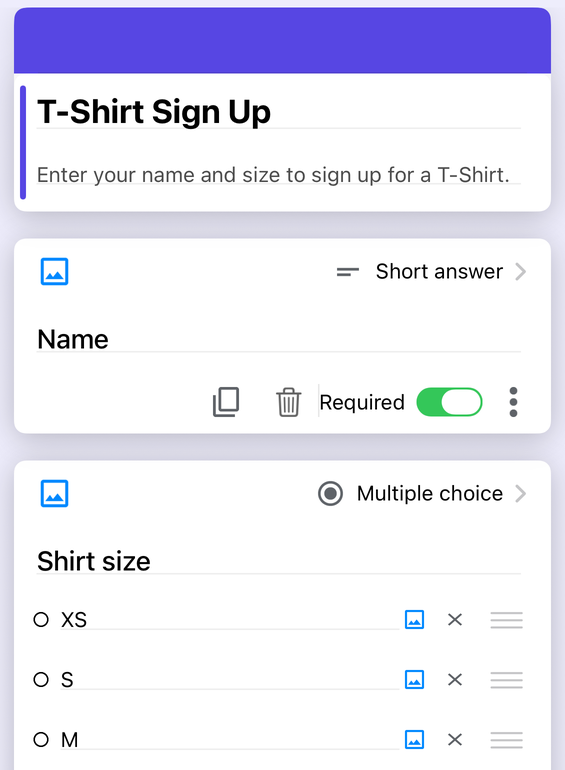
Form+ is a native iPhone and iPad client for your real Google Forms. It signs in to your own Google account, works on the forms already in your Drive, can import forms from Drive in bulk, and writes back to those same forms rather than to copies. To be clear about what it is not: Form+ is a Google Forms client. It does not open, edit or import Microsoft Forms, and it is not a third competitor to the two products compared above.
Staying on Google Forms?
Form+ edits your real Google Forms on iPhone and iPad — your account, your Drive, no migration.
Get Form+ free on the App StoreFrequently asked questions
Is Microsoft Forms free?
You can sign in to Microsoft Forms with a free Microsoft account (Hotmail, Live or Outlook.com), so yes, there is a free tier. But Microsoft's published limits state that for a Microsoft personal account a form can receive up to 200 responses on a free account and up to 1,000 on a paid account, against up to 5,000,000 in a standard work or school environment. Several settings, including Record name, one response per person and file upload questions, are documented only for work or school accounts.
How many responses can each form collect?
Microsoft publishes a hard number: up to 5,000,000 responses per form in standard environments, up to 50,000 for GCC High and DoD, and up to 200 (free) or 1,000 (paid) for a Microsoft personal account. Google does not publish a hard cap. Its help centre instead documents thresholds where things degrade: the response summary may not appear above 50,000 responses, responses may not sync with Sheets above 100,000, and a CSV export may not be sorted by timestamp above 10,000. Both products also let you close a form automatically after a set number of responses or at a set date and time.
Which is better for quizzes, Google Forms or Microsoft Forms?
Both do quizzes properly. Google documents answer keys for short answer, multiple choice, checkboxes, dropdown, multiple choice grid and checkbox grid questions, per-question point values, written or YouTube video explanations, and a choice of releasing grades immediately after submission or later after manual review. Microsoft documents assigning a point value per question, marking correct answers, and a custom message attached to an individual answer choice, plus a Math option for symbols and formulas. If you want maths notation, Microsoft has it documented; if you want video explanations and deferred manual grade release, Google has it documented.
Can someone without an account fill in my form?
Yes on both, as long as the owner chooses the open setting. Microsoft's “Anyone can respond” setting lets people inside or outside your organisation submit, and those responses come in without names recorded. Google Forms can be published to anyone with the link. The exceptions are specific features: a Google Forms file upload question requires the responder to sign in to a Google Account, and a Microsoft Forms file upload question is only available when responses are restricted to people in your organisation.
Can I edit Google Forms on an iPhone?
Google does not publish a Google Forms app for iPhone, so the Google-provided route is the Forms website in a mobile browser. A third-party native client such as Form+ signs in to your own Google account and edits the forms already in your Drive. Form+ is a client for Google Forms only; it is not a way to open or edit Microsoft Forms.