How to add a time question in Google Forms
Last updated September 2026 · ~9 minute read
Short answer: add a question and choose Time, the last type in Google's list. It has two modes, and choosing the wrong one quietly ruins your data. Google documents them as “Time in hh:mm AM/PM format” and “Duration in Hrs Min Sec format”, and adds: “To switch between time or duration, at the bottom right of the question, click More.” Time is a clock reading. Duration is a length. Two things Google does not publish anywhere: what either one writes to the linked spreadsheet, and which clock a given responder sees.
Form+ adds and edits Time questions — clock or duration — on your own Google account, built on the official Google Forms API. Get Form+ free on the App Store.
Nobody discovers this distinction while building the form. They discover it three weeks later, in a column of answers that cannot be added up.
Add the question
- Open your form in Google Forms.
- Click Add. Google's instruction is: “To the right of the question title, choose the type of question you want.”
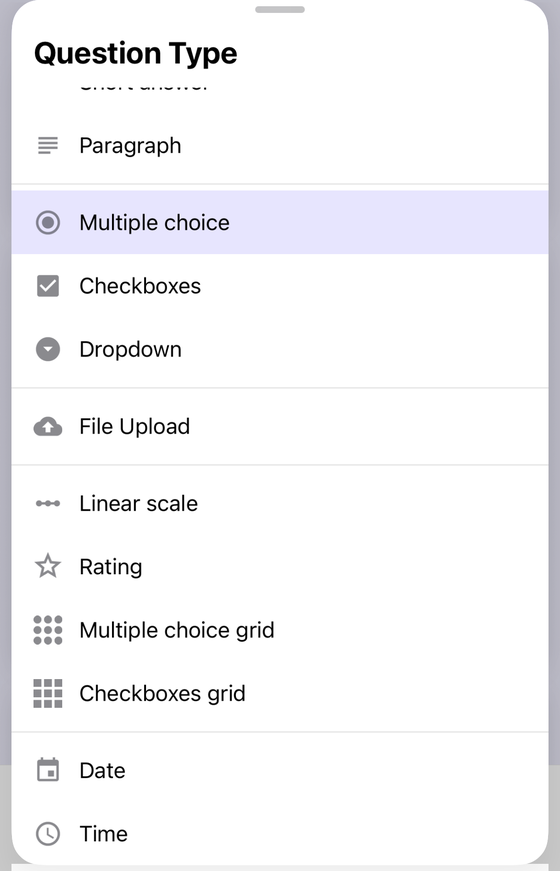
- Choose Time. It is the twelfth and final entry on Google's question-type page, directly below Date.
- Pick the mode: leave it as a time, or click More and switch it to a duration.
- Write the question text so the mode is obvious to the responder — “Start time” and “Time taken” ask for very different things, and the boxes alone will not explain which you meant.
That is the entire setup. Everything else on this page is about the choice in step 4, because it is the only irreversible-feeling decision in an otherwise trivial question.
Time versus Duration
Both modes live inside the one question type — this is not a Date-style pair of separate types. What
changes is the meaning of the answer. Google's
Forms API reference
puts the distinction more plainly than the help centre does, describing the switch as a single flag:
“true if the question is about an elapsed time. Otherwise it is about a time of day.”
| Time | Duration | |
|---|---|---|
| Google's wording | “Time in hh:mm AM/PM format” | “Duration in Hrs Min Sec format” |
| What it means | A point on the clock — a moment in a day. | A length — how much time something took. |
| Fields in the published format | Hours and minutes, plus AM/PM. No seconds. | Hours, minutes and seconds. |
| Sensible questions | Shift start, arrival, opening hour, preferred call time. | Race time, session length, hours worked, repair time. |
| Response validation | Not documented for this type. | Not documented for this type. |
The two answers are not interchangeable and they are not convertible after the fact. “2:30 PM” and “2 hrs 30 min” look similar on a page and mean nothing alike: one is a position, the other is a quantity. You can average durations; averaging clock readings is usually meaningless. You can sort arrivals; summing them is nonsense. Getting this wrong does not produce an error message — it produces a column that answers a question you did not ask.
What responders actually see
Google describes the input by its format string rather than by its controls, so the honest reading is this: in Time mode the published format is hh:mm with an AM/PM part, which is hours and minutes and no seconds. In Duration mode the published format is Hrs Min Sec — three components, and seconds are available. If your answer needs sub-second precision, or tenths for a sports time, neither mode advertises it, and the practical route is a text question with a stated format.
One consequence worth designing around: a duration of “90 minutes” has two valid spellings in three boxes — 1 hr 30 min, or 0 hr 90 min. Google does not publish a rule about normalising it. Say which you expect in the question description if the difference matters to your analysis.
What lands in the spreadsheet — Google is silent
This is the part that costs people an afternoon, and the honest answer is short: Google publishes nothing about it. The question-type help page describes what responders fill out and stops there. The help page on viewing and sharing responses explains Link to Sheets and Download responses (.csv) without describing any column's format. Nowhere does Google state whether a Time answer arrives as a real time value or as text, whether a Duration arrives as a duration value, an hours-minutes-seconds string, or a count of seconds, or what happens to either in the CSV.
We are not going to guess on your behalf. Do the thirty-second check instead, before you build anything on top of the column:
- Link the form to a spreadsheet, if it is not linked already — the responses in Google Sheets guide covers that step.
- Submit one test response with a memorable value, such as 1 hr 23 min 45 sec.
- Click the resulting cell and read what the formula bar shows, which is not always what the cell displays.
- In an empty cell, put
=ISNUMBER(that cell).TRUEmeans Sheets is holding a real numeric time value you can do arithmetic with;FALSEmeans you have text, and every sum or comparison you write against it will need parsing first. - Set the column's number format deliberately, then delete the test row.
Run that check once per form. It takes less time than reading one forum thread about it, and unlike the forum thread it tells you the truth about your spreadsheet, today.
Time questions cannot be validated
There is no “between 9 AM and 5 PM”, no “at least 30 minutes”, no rounding to the nearest quarter hour. Google's page on setting rules for a form documents response validation for exactly five question types — Short answer, Paragraph, Checkboxes, Multiple choice grid and Checkbox grid. Time appears nowhere on that page, in either mode. A Time question accepts 3 AM, and a Duration question accepts 99 hours.
So the rule has to live somewhere else, and there are only two honest places for it. Put the limit in the question title or description — “Finish time (we are open 08:00–18:00)” — which does not block a bad answer but removes the ambiguity and makes the outliers obvious on review. Or replace the free input with a closed list, which is the subject of the next section. If your constraint is really about text patterns, the data validation guide covers what the five supported types can enforce.
12-hour or 24-hour?
Google publishes exactly one format for this question: “Time in hh:mm AM/PM format”. An AM/PM part implies a 12-hour reading. What Google does not publish is any statement that the display follows the responder's language, country, Google account settings or device — and there is no setting in the question for choosing a clock either. There is no published rule. An absence of documentation is not a promise that it is fixed at 12-hour, and not a promise that it adapts.
The consequence holds whichever way the behaviour actually falls: for an international audience you cannot state in advance which clock a given responder will be shown, and you cannot prove afterwards which one the person answering was looking at. If a mis-read of 6 AM as 6 PM would matter, do not let the control carry that meaning on its own — spell the expectation out in the question text, or offer named options such as “Morning (before 12)” and “Afternoon (12–17)”.
The two mistakes worth naming
Using Time when you mean Duration. “How long did this take?” is not a clock reading, but Time is the default mode, so it is what an unedited question collects. The tell is a column of answers like 11:45 AM where you expected lengths, and by then the responders have interpreted the boxes however they liked. Switch to Duration before you send the form, not after — and if you have already collected the answers, you cannot recover the intent, because “12:30” gives you no way to tell twelve and a half hours from half past twelve.
Using Time for appointment slots. This one is more tempting and more damaging. A Time question cannot be constrained to the times you actually offer — see the validation section above — so someone will book 04:17, someone will book a slot you already filled, and someone will type a time on a day you are closed. Appointment booking wants a closed list: Multiple choice or a Dropdown of the slots you are offering. You get answers that can be counted per slot, options you can branch on, and a question that cannot produce a booking you are unable to honour. The event registration guide goes through the rest of that pattern. Keep the Time question for reporting a time that has already happened, where any value is legitimately possible.
Adding a Time question from an iPhone
Everything above assumes the desktop web editor. Form+ edits your real Google Forms on your own Google account through the official Forms API, so a Time question added on a phone is the same question in the same form — including the Time-or-Duration choice, which Form+ shows as a two-segment control on the question itself rather than behind a menu.
- Open the form and go to the editor.
- Add a question and set its type to Time.
- Choose Time or Duration on the question, then write the title so the responder knows which one you meant.
Edit your real Google Forms from your phone
Form+ adds and edits Time questions — clock or duration — on your own Google account, built on the official Google Forms API.
Get Form+ free on the App StoreFrequently asked questions
What is the difference between Time and Duration in Google Forms?
They are the two modes of one question type. Time collects a clock reading, documented as “Time in hh:mm
AM/PM format”. Duration collects a length, documented as “Duration in Hrs Min Sec format”. Google's Forms
API describes the same switch as: “true if the question is about an elapsed time. Otherwise it
is about a time of day.”
Can I add response validation to a Time question?
No. Google's page on setting rules for a form documents response validation for exactly five question types — Short answer, Paragraph, Checkboxes, Multiple choice grid and Checkbox grid. Time does not appear on it, so there is no setting for office hours only or a maximum duration.
Do responders see a 12-hour or a 24-hour clock?
Google publishes one format only — “Time in hh:mm AM/PM format” — and publishes no rule about that changing with the responder's language, country or account settings. Because there is no published rule either way, do not build a form that depends on which clock a particular responder is shown.
What does a Time answer look like in Google Sheets?
Google does not document it. Neither the question-type help page nor the page on viewing responses
describes the value a Time or Duration answer writes to the linked spreadsheet. Submit one test response,
check the cell with ISNUMBER, and format the column deliberately before any formula depends on
it.
Should I use a Time question for appointment slots?
Usually not. A Time question accepts any clock reading, and nothing constrains it to the slots you actually offer. If you have a fixed set of slots, list them as Multiple choice or Dropdown options, which also lets you use section branching and gives you a countable column.